

Autopost WooCommerce to Facebook: A Store Owner’s Guide

To autopost WooCommerce to Facebook, you need two separate things working together: a synced product catalog, so your products exist inside Facebook, and a posting engine that turns those products into real Page posts on a schedule. Most store owners set up the first, wait for posts to appear, and wonder why their Page is quiet. The catalog does not write or publish posts. Xyla is built for the second job: it takes your WooCommerce listings, turns them into ready-to-publish visual content and posts it to Facebook, Instagram, TikTok and other networks, which is why our users describe it as getting back around eight hours a week.
This guide shows the difference, walks through the full setup in order, and covers what to check when posts or syncing stop.
TL;DR
- Catalog sync and autoposting are different systems. Sync puts product data into Meta’s commerce catalog; autoposting publishes marketing posts (image, caption, link) to your Page.
- Start with the official Meta for WooCommerce extension to connect your Page and catalog. Products sync by default once it is connected.
- Add a posting layer so each product becomes a finished post on a schedule. Xyla does this from your product data, with copy and format adapted for each network.
- Most failed connections trace back to account-level setup: Business Manager access, two-factor authentication or an expired authorization.
- Xyla plans for WooCommerce start at $29 per month (Growth, billed monthly), with AI content generation included in the standard plans.
Table of Contents
- Autoposting vs. catalog sync: what each one actually does
- Step 1: Connect your store to Facebook with the Meta extension
- Step 2: Turn products into posts that get published
- Step 3: Make the posts sell, not just appear
- Posting beyond Facebook
- If you run Shopify instead
- When autoposting or syncing stops: a troubleshooting checklist
- What the setup costs with Xyla
- Our perspective
- Put your product feed to work
- FAQ
- Sources
Autoposting vs. catalog sync: what each one actually does
When people say “connect WooCommerce to Facebook,” they usually mean one of two different operations.
Catalog sync moves structured product data (title, description, price, availability, image, link) into a Meta catalog. That catalog powers your Facebook Page shop and lets you create product-based ads. In the Meta for WooCommerce documentation, each product has a Facebook tab with three modes: sync and show in catalog (the default for new products), sync and hide in catalog, and do not sync. So once the extension is connected, new products reach the catalog without you doing anything.
Autoposting publishes a normal post on your Page: a visual, a caption written to sell, a link back to the product page. This is what fills your feed, gets reach and sends visitors to your store. A catalog entry does not do that on its own. A product sitting in a catalog is a record; a post is something a follower can see, react to and click.
Treat them as a pair. Catalog sync keeps product data correct inside Meta. Autoposting keeps your Page active and drives people to those products. If you only do the first, your shop exists but your feed stays empty. If you only do the second, you lose the shop and shopping features that make a post easier to buy from.

Step 1: Connect your store to Facebook with the Meta extension
This is the foundation, and the WooCommerce documentation lays out the route. Here is the routine, with where it tends to go wrong.
- Install the Meta for WooCommerce extension. Find it in your WordPress admin and activate it.
- Open Marketing > Facebook and click Get Started. The official guide then has you log in to Facebook and create or select your Business Manager account, Facebook Page, ad account, Meta Pixel and catalog.
- Enable two-factor authentication and authorize the connection. Skipping two-factor is one of the most common reasons a connection fails later.
- Confirm products are syncing. New products sync by default. If some do not appear, the extension has a manual Sync products button.
Where it goes wrong: you pick the wrong Page or ad account during setup, or connect with a personal login that does not have full control over the business assets. Take two minutes to confirm that the Page you pick is the one customers actually follow.
For product readiness, Meta’s catalog expects a core set of fields for every item: id, title, description, availability, condition, price, link, image link and brand. According to AdFlint’s 2026 guide, images should be at least 500x500 pixels, JPEG or PNG, and under 8 MB, with prices in a three-letter currency code. A product with a missing brand or a tiny image is the usual reason a single listing refuses to show up.
Step 2: Turn products into posts that get published
With the Page connected, the question becomes how a product becomes a post without you opening a design tool every time. Doing it by hand means choosing a photo, resizing it, writing a caption, picking a time and repeating it for every product, every network. That routine is where the hours go, and it is the first thing to slip when the store gets busy.
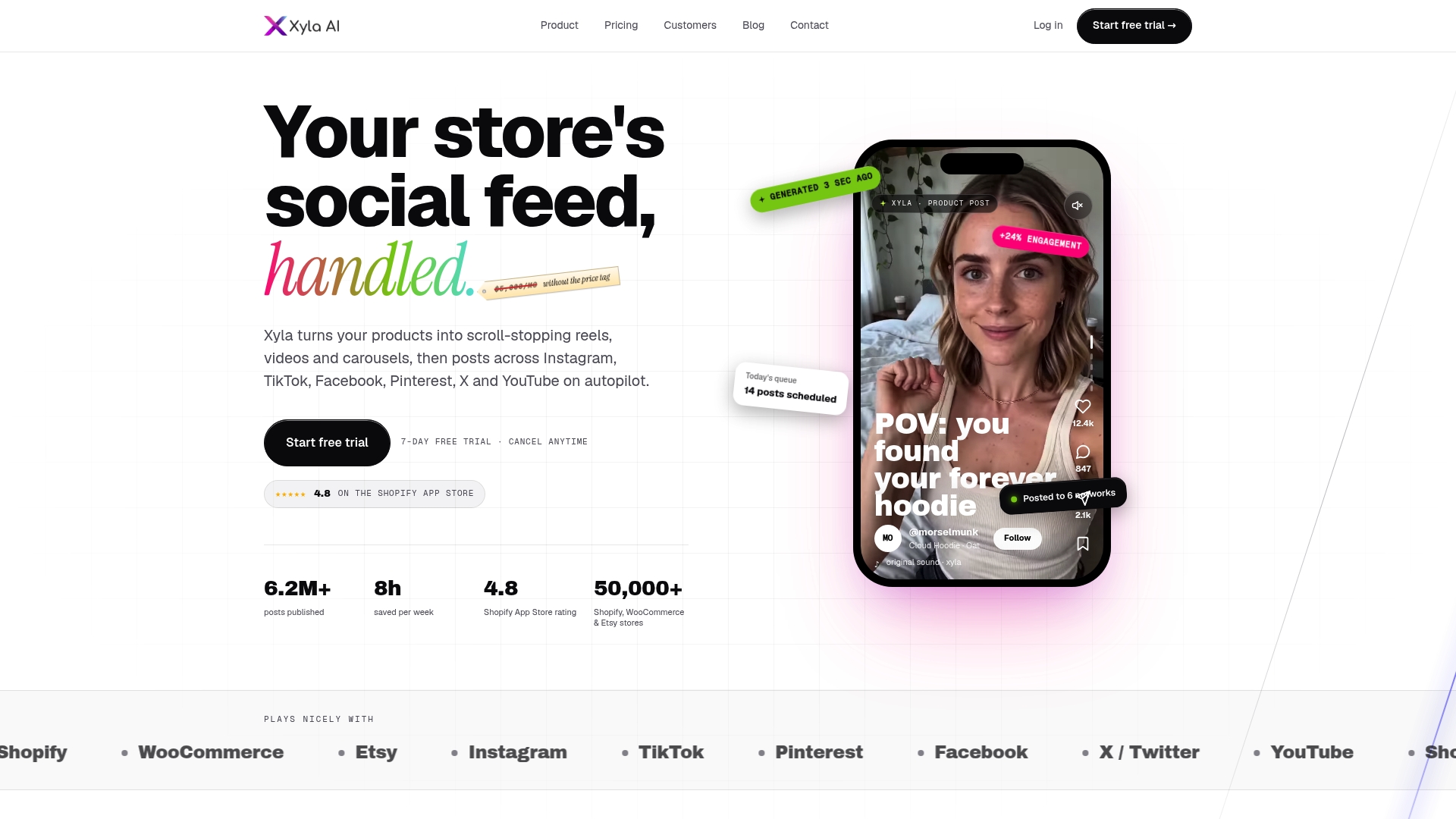
This is the work Xyla takes off your hands. Our platform converts your product listings into visual content, including reels, videos and carousels, generates brand-aligned copy and customizes each asset for the network it is going to. It then schedules and auto-publishes the posts. For a WooCommerce store, our WooCommerce page covers how the connection works, and our five-step walkthrough of auto posting from product updates shows how a product change in your store becomes a social post.
Here is what the routine looks like at each stage, and what Xyla does there:
Stage What it takes by hand What Xyla does Source the content Pull photos and details from each product page Starts from your real product data in the catalog Create the visual Resize, design, edit video for each format Generates reels, videos and carousels from your listings, plus AI image and video generation from product photos Write the caption Draft copy for every post and every network Generates brand-aligned copy Adapt for the network Re-export for each platform’s format Customizes assets for Instagram, TikTok, Facebook, Pinterest, X and YouTube Publish at a good time Remember to post, usually late Schedules and auto-publishes postsOne point matters for budgeting. Our AI content generation is part of the standard plans, not metered per generation. That means you are not counting credits each time you create a video or image for a new product. If you want the Facebook-specific view, see Facebook auto posting for small ecommerce and ready Facebook posts for ecommerce.
Step 3: Make the posts sell, not just appear
An autopost that only repeats a product photo and a price gets skimmed. A few choices make a real difference.
Vary the format. A feed of identical images tires followers. Mixing reels, carousels and single-image posts keeps the Page varied, and Facebook rewards video. Our guides on Facebook Reels for stores and Facebook Reels templates for ecommerce go into what works. Xyla produces entirely new, modern UGC-style video and image content from your real product data rather than remixing templates.
Write for the person, not the listing. Product descriptions are written to inform; captions are written to make someone stop scrolling. How to write AI social captions for ecommerce covers this in detail.
Send people to the right place. Every post needs a link back to the product page. Facebook and Instagram have moved to sending buyers to your own website to finish the purchase, according to Shopify’s requirements page, so your site is where the sale happens. Our platform supports Instagram Shopping tags and automated link-in-bio routing, so the path from a post to a product stays short.
Measure where sales come from. If you cannot tell which posts drive orders, you cannot improve them. Read about UTM-first social commerce analytics to see how tracking fits in.
The larger picture of why steady posting matters, and how to plan it, is in our WooCommerce marketing strategy for social media. For the wider benefits of automating the work, a clear overview of how automated publishing works across channels shows the same principle applied to content planning and scheduling: decide once, publish consistently.

Posting beyond Facebook
Most stores that autopost to Facebook want the same products on Instagram and TikTok. Because a Facebook Page and an Instagram account share the same Meta catalog and business setup, the connection work you did in Step 1 carries over. From there, the posts need different shapes: vertical video for reels and TikTok, carousels for Instagram. See our guides to autoposting WooCommerce to Instagram and to TikTok. Etsy sellers can follow the same logic with autoposting Etsy listings to Facebook.
If you run Shopify instead
Shopify works a little differently on the catalog side. Its “Facebook and Instagram by Meta” sales channel syncs products to Facebook once set up, and per Shopify’s Help Center, changes to product details usually show on Facebook within a few minutes. Products must meet Meta’s requirements, including needing shipping (no digital products), a return policy and a Google product category. Collections sync only for US-based stores.
Free Facebook Page posts can also be created from Shopify after you set up Meta’s Ads Manager. Shopify notes that the posts are free because they are not ads, though payment details must be added during setup, and you are billed only if you run paid ads. Those posts are a manual, one-at-a-time process. To keep a steady schedule across every product, Xyla’s Shopify plans handle the creation and publishing automatically.
When autoposting or syncing stops: a troubleshooting checklist
If the Page goes quiet or products stop appearing, go through these in order.
- Check the product itself. Is it published, active and in stock, with all required fields, a valid image and a working landing page? AdsUploader’s setup guide lists unpublished products, hidden out-of-stock items, all-caps titles and expired tokens as common silent blockers.
- Run a manual sync. In WordPress, use the Sync products button in the Facebook settings and watch for errors.
- Look at what changed. A WooCommerce support thread notes that changing your Facebook password or enabling two-factor authentication can break the connection. Turn on the debug log under Marketing > Facebook for WooCommerce, run a manual sync and read the result.
- Fix account permissions. In a GitHub issue on the plugin, a Meta developer traced “Unknown Error” sync failures to account-level problems, such as the access token not being added as a system user with permissions on the ad account, or missing two-factor authentication on the business account. The suggested fix was resetting the connection settings and confirming the system user has admin access to the ad account in Business Manager.
- Reconnect. If the authorization has expired, run the Get Started flow again and approve the connection.
Keep your catalog data in the store itself. Partner platforms push changes automatically, and per AdFlint, manual edits made in Commerce Manager are overwritten at the next sync. Fix the product in WooCommerce, not in Meta.
What the setup costs with Xyla
The Meta extension handles the catalog. Our plans cover the content and the posting. For WooCommerce stores, the pricing page lists three tiers:
Plan Monthly Annual Growth from $29 per month from $209 per year Pro $39 per month $281 per year Enterprise $60 per month $432 per yearPlans are tiered by features and usage, such as the number of posts, networks and AI credits, and there is a free trial before you pay. Etsy sellers see their own plan names on the Etsy pricing page.
Our perspective
We built Xyla because we kept seeing the same pattern in small stores: the products are good, the catalog is connected, and the social feed is empty because nobody has the hours.
Connecting a store to Facebook is a one-time job. Posting is a weekly one. The second job is where stores fall behind, and it is why we designed Xyla around the posting itself rather than around another dashboard to check.
Our approach is to generate new content from your real product data: modern, UGC-style video and images, with copy that fits your brand and a format that fits each network. We bake AI content generation into the standard plans so you are not rationing credits while you build a library of posts. And because we manage and publish the full calendar, a new product in your store can become a post without you opening an editor.
That is how we aim to give store owners back around eight hours a week: sync the catalog once, let the posts go out on schedule, and spend your time on the products and the customers.
Toby
Put your product feed to work
Your catalog is already full of material: photos, descriptions, prices. Xyla turns those listings into reels, videos and carousels, writes the captions and publishes them to Facebook, Instagram, TikTok and more, so your Page stays active while you run the store. See the plans on our pricing page or start from the Xyla homepage.
FAQ
Does Meta for WooCommerce autopost my products to my Facebook Page?
It syncs your products to a Meta catalog, which powers your Page shop and product-based ads. Syncing is not the same as publishing marketing posts to your feed. For regular posts with visuals and captions, you add a posting tool such as Xyla, which creates and schedules them from your product data.
Do new WooCommerce products sync to Facebook automatically?
Yes, once the extension is connected. Per the WooCommerce documentation, new products default to “Sync and show in catalog,” and a manual Sync products button is available if any item does not appear.
Why did my WooCommerce Facebook sync stop working?
The usual causes are account-level: an expired authorization, a changed Facebook password, missing two-factor authentication, or a system user without admin access to the ad account. Product-level causes include unpublished or out-of-stock items and missing fields. Work through the checklist above, starting with a manual sync and the debug log.
Can I autopost Shopify products to Facebook too?
Yes. Shopify’s Facebook and Instagram channel syncs products, and Xyla offers Shopify plans that create and publish posts for your Shopify store in the same way it does for WooCommerce.
Sources
- Meta for WooCommerce Documentation
- Shopify Help Center: Publishing products on Facebook and Instagram
- Shopify Help Center: Creating Facebook Page posts
- Shopify Help Center: Requirements and considerations
- AdFlint: Meta Commerce Manager guide
- AdsUploader: How to set up a Facebook catalog
- GitHub: facebook-for-woocommerce issue 2627
- WordPress.org support: Sync not working


