

Save 8 Hours: Autopost WooCommerce to Instagram With Catalog + AI
Yes, you can autopost WooCommerce products to Instagram, but two conditions come first: your store needs a working Meta catalog connection, and your Instagram account needs to be a Business profile linked to that catalog. Once those are in place, you have a choice between catalog based shopping tags and full creative automation. Check your prerequisites now, then work through the setup steps below.
TL;DR:
- Connecting WooCommerce to Instagram requires a Facebook Page, a Commerce Manager catalog, and an Instagram Business account linked to that page.
- Prerequisites include having WooCommerce updated, complete product data, domain verification, and correct permissions on Facebook and Meta Business Manager.
- Successful automation hinges on both catalog sync for tagging and separate creative tools for generating posts like Reels and carousels; they serve different functions.
- Most sync issues stem from expired domain verification, permission errors, or unrefreshed feeds, which can be resolved with targeted troubleshooting.
- Automating content creation can save a small business roughly eight hours per week but still requires understanding platform limits, mobile tagging, and compliance rules.
Table of Contents
- Prerequisites Before You Connect WooCommerce to Instagram
- How Do You Connect WooCommerce to Instagram Step by Step?
- Catalog Sync vs. Creative Automation: What’s the Difference?
- What’s the Right Posting Schedule for Automated Instagram Posts?
- Why Isn’t My Catalog Syncing to Instagram?
- What Metrics Actually Matter for Automated Instagram Posts?
- Product Tagging Limits and Mobile-Only Shopping Setup
- Posting Frequency, Format Mix, and Scheduling That Actually Work
- Setting Up Automated Workflows With Zapier or Similar Tools
- Which Plugins and Extensions Actually Handle This Well?
- Legal and Compliance Considerations for Autoposting
- A Store Owner’s Take on What Automation Actually Buys You
- Run Your WooCommerce Catalog and Content From One Place
- Where to Verify These Setup Steps Yourself
- Sources
Prerequisites Before You Connect WooCommerce to Instagram
Skipping a prerequisite here is the single biggest reason setups stall halfway through. Before you touch a plugin, confirm you have every piece Meta actually checks for.
Instagram Shopping requires a Facebook Page, a Commerce Manager catalog, and an Instagram Business account tied to that Page. You’ll also need admin or editor access to the Facebook Page and the Meta Business Manager account, since a personal profile with viewer-only rights can’t complete the connection.
On the WooCommerce side, run the current version of WooCommerce core and clean up your product data first. Titles, images, and descriptions feed directly into what gets synced and later into what an automation tool turns into a post, so vague titles or missing photos produce weak results downstream.
Confirm before moving forward:
- A Facebook Page for your business, with you as admin
- Access to Meta Commerce Manager
- An Instagram account converted to Business (not Personal or Creator)
- WooCommerce updated to its latest stable release
- Clean, complete product titles, images, and descriptions
- Domain access to add a verification file or DNS record
How Do You Connect WooCommerce to Instagram Step by Step?
The actual wiring takes under an hour if your prerequisites check out. Here’s the order that avoids the most common dead ends.
- Install Facebook for WooCommerce. This is the official connector for pushing your catalog to Meta, and it runs a setup wizard that walks you through linking your Facebook Page and Business Manager account.
- Create and push your catalog. The plugin builds a Catalog in Commerce Manager from your WooCommerce product feed. Give it a few minutes, then check Commerce Manager to confirm products appear with the right prices and images.
- Test the sync. Change a product’s price by a few cents or add a suffix to a title, then watch Commerce Manager for that update. It should reflect within the sync window if the feed and permissions are working correctly.
- Verify your domain in Meta Business settings. This step gets skipped constantly, and skipping it can trigger catalog restrictions later. Add the verification meta tag or DNS record Meta gives you, then confirm the domain shows as verified.
- Convert your Instagram account to Business if you haven’t already, and link it to the same Facebook Page.
- Request Instagram Shopping approval. Meta reviews this manually in most cases, and approval can take anywhere from a day to over a week.
- Test product tagging. Once approved, tagging happens through the Instagram mobile app, not the desktop dashboard. Post an image, tap the tag tool, and search for a product from your catalog to confirm it appears.
Pro Tip: Run your price-change test on a product nobody’s actively buying that week. It confirms sync integrity without confusing a customer who happens to see the price flicker.
Catalog Sync vs. Creative Automation: What’s the Difference?
Catalog sync and creative automation solve two different problems, and conflating them is where a lot of store owners waste time. Catalog sync feeds Meta the product metadata (price, image, availability, ID) needed to power shopping tags. It’s required if you want tappable product stickers on your posts and Stories, but on its own it does not post anything for you. It just makes tagging possible once you post manually.

Creative automation is the layer that takes your product pages and turns them into actual posts: Reels, carousels, captions, and a publishing schedule. That layer requires a separate tool built for content generation, since neither WooCommerce nor Facebook for WooCommerce generates video or writes captions.
Running both together is what actually moves the needle:
- Catalog sync gives you shoppable tags on every post
- Creative automation gives you the volume and video format Instagram’s algorithm favors
- Together, they cover both discovery (Reels) and conversion (tagged products)
Format matters here. Guides on modern social commerce consistently point out that combining catalog data with a dedicated creative layer produces stronger engagement than shopping tags alone, since static catalog posts rarely perform as well as short video. Xyla AI is one option built to run this second layer directly off your WooCommerce catalog, generating and scheduling posts without you touching a video editor.
What’s the Right Posting Schedule for Automated Instagram Posts?
Consistency beats intensity here. A useful rule of thumb: post four to six times a week, with at least half of that mix in Reels rather than static images, since video formats tend to get more algorithmic reach.
- Build two or three post templates (a product hero shot, a Reel with a quick feature callout, a carousel comparing variants) and let your automation rotate through them.
- Vary the hook in the first three seconds of each Reel. Same product, different opening line.
- Schedule around when your audience is actually online, not just a fixed 9 a.m. slot, and let a scheduler handle the timing so you’re not manually posting at 7 p.m. on a Saturday.
- Write captions that lead with a benefit, not a product name, then follow with one relevant hashtag set, no more than eight to ten tags.
- Place the product tag where it doesn’t cover the main subject of the image or the first Reel frame.
Pro Tip: Keep one variant constant across two weeks of testing, changing only the hook or caption. That isolates what’s actually driving the engagement difference.
For more on format mix and cadence, the WooCommerce social strategy guide breaks down channel-specific timing in more depth.
Why Isn’t My Catalog Syncing to Instagram?
Most sync failures trace back to one of three causes, and checking them in order saves you a support ticket.
- Feed not refreshing: Change a SKU’s price or title slightly and watch Commerce Manager. If the change doesn’t appear within the expected sync window, the feed connection itself is broken, not just delayed.
- Permission errors: Confirm you’re still an admin on the Facebook Page and that no one revoked Business Manager access. Role changes are a common silent cause of sync breaks.
- Domain verification lapsed: If your DNS record changed or a hosting migration wiped the verification meta tag, Meta can quietly restrict catalog features again.
- Plugin logs: Facebook for WooCommerce logs sync errors under WooCommerce’s status page. Check there before assuming the problem is on Meta’s end.
If the feed itself won’t update after 24 hours, that’s a Meta-side issue worth a support ticket. If tagging works but posts aren’t scheduling, that’s your automation tool, not Meta.
What Metrics Actually Matter for Automated Instagram Posts?
Track four numbers and ignore the rest for now: UTM-tagged click throughs per post, conversion rate on that traffic, engagement rate by format (Reels vs. static vs. carousel), and revenue attributed back to specific posts through your site analytics paired with Commerce Manager’s catalog performance data.
- Tag every automated post with a unique UTM parameter before it goes live
- Compare engagement by format weekly, not daily. Daily swings are noise
- Run one hook or format variation test every one to two weeks
- Scale whatever wins for two to three weeks, then test the next variable
Product Tagging Limits and Mobile-Only Shopping Setup
Instagram caps product tags at five per single image post and twenty across a multi-image carousel. Hit that ceiling and the platform simply won’t let you add more, so prioritize your best sellers or the specific variants you’re pushing that week rather than trying to tag an entire catalog on one post.
The bigger limitation catches people off guard: final tagging approval and the actual tag placement happen through the Instagram mobile app, not a desktop dashboard or Commerce Manager. You can build your catalog, verify your domain, and request Shopping approval entirely from a desktop browser, but the last step, tapping a product onto a live post or Reel, only works on the phone.
This matters for automation planning. A creative automation tool can generate and schedule the post itself, but if you’re relying on manual product tags rather than catalog-driven auto-tagging, someone still needs to open the app and tag it after it publishes, or before, depending on the workflow. Some automation platforms handle tagging programmatically through the catalog connection, which removes this manual step entirely. If yours doesn’t, budget five minutes a day for mobile tagging rather than assuming the whole pipeline runs hands-off.
Test this early. Post one tagged image and one tagged carousel before you scale up posting frequency, so you know your tag limits and mobile workflow before automation is producing ten posts a week that all need the same manual follow-up.
Posting Frequency, Format Mix, and Scheduling That Actually Work
Four to six posts a week is a reasonable floor for a WooCommerce store trying to stay visible without burning out a small team. Below that, the algorithm has little reason to keep showing your account to new people between posts.
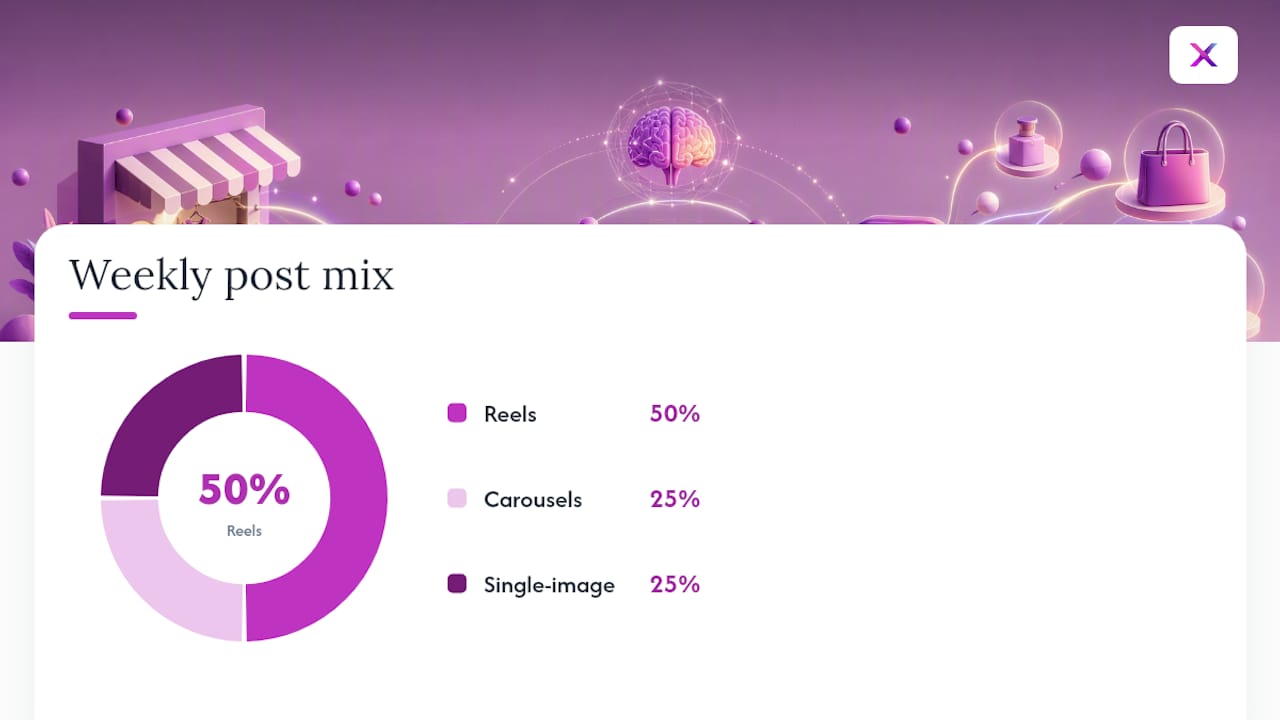
Format mix matters more than raw frequency. Reels consistently outperform static product images on reach, which means a schedule built entirely on catalog-driven static posts will underperform one that leans on short video even at a lower total post count. A workable split: half your weekly posts as Reels, a quarter as carousels showing product variants or use cases, and the remainder as single-image posts reserved for flash sales or restocks where speed matters more than production value.
Scheduling should follow when your specific audience is active, which you find in Instagram’s own account insights rather than a generic “best time to post” chart. Once you know your windows, queue posts through a scheduler rather than posting live, since manual posting at the exact right moment every day isn’t realistic for a small team.
One operational habit worth building: batch your creative generation weekly rather than daily. Generate a week’s worth of Reels and captions in one sitting, review them for accuracy, then let the schedule run. This catches errors (a wrong price, a discontinued variant) before they go live instead of after, and it means one person can manage a week of content in under an hour once the automation layer is producing the drafts.
Setting Up Automated Workflows With Zapier or Similar Tools
If you’d rather build your own pipeline instead of using a dedicated commerce automation tool, connecting WooCommerce to Instagram through a workflow platform like Zapier or Make (formerly Integromat) is possible, though it comes with real limits worth knowing upfront.
The basic pattern: a trigger fires when a new WooCommerce product is published or a specific tag is applied, that trigger pulls the product title, price, and image URL, and an action step posts that data somewhere Instagram can pick it up, since neither Zapier nor Make posts directly to a personal Instagram feed without going through Meta’s own API restrictions.
In practice, this means:
- Set the trigger to “New Order” or “New Product” in your WooCommerce connection.
- Map the product fields you want pulled (image, title, price) into the workflow.
- Route the output through a Meta-approved posting step, since direct posting requires the same Business/Instagram Graph API permissions as any other Instagram integration.
- Add a caption template using the mapped fields so each post isn’t identical boilerplate.
- Test with one product before connecting the trigger to your full catalog feed.
The catch: these workflow tools handle the data movement well, but they don’t generate video, Reels, or design variety. You’ll get a static image with a caption, which is functionally similar to what catalog sync already offers through Commerce Manager. For creative variety, that layer needs to come from a tool actually built to generate platform-native video and carousels from product data, not just move a JSON payload from one API to another.
Which Plugins and Extensions Actually Handle This Well?
Not every plugin claiming “Instagram integration” does the same job, and mixing them up wastes setup time. Three categories exist, and knowing which one you’re installing matters.
Catalog and shopping tag plugins are built to sync product data to Meta so you can tag products on posts. Facebook for WooCommerce is the official version and the one Meta’s own documentation points to. It’s free, actively maintained, and the only realistic starting point for Instagram Shopping eligibility.
UGC and feed-display plugins pull Instagram content back into your WooCommerce store rather than pushing products out. The official WooCommerce Instagram extension falls here, letting you display hashtag feeds or link customer photos to product pages. It’s a complement to catalog sync, not a replacement for it, and it doesn’t post anything to Instagram on your behalf.
Creative automation platforms generate the actual posts, Reels, carousels, captions, from your product catalog and publish them on a schedule. This is where a tool like Xyla AI operates, and it’s the category most store owners are actually looking for when they search for autoposting, since catalog plugins alone don’t create content.
The realistic setup for most stores combines the first and third: Facebook for WooCommerce for shopping tags, plus a creative automation layer for the actual content pipeline. Trying to make a catalog plugin do a creative tool’s job, or vice versa, is where most frustration in this space comes from.
Legal and Compliance Considerations for Autoposting
Automating posts pulled from customer or product data isn’t a free-for-all, and a few compliance basics are worth locking down before you scale posting volume.
Product images and descriptions you own outright are safe to automate. Customer-generated content, reviews, or photos are a different story: reposting a customer photo in an ad or shoppable post generally requires their permission, even if your store’s terms of service mention UGC rights somewhere. Get explicit consent, or stick to your own product photography, for anything an automation tool repurposes at scale.
Instagram’s own platform policies restrict certain product categories from shopping tags entirely, including some supplements, alcohol in certain regions, and anything Meta classifies as a restricted good. If your catalog includes any of these, check Meta’s commerce policies before assuming every SKU will sync and tag cleanly, since a rejected catalog can delay Shopping approval for your entire account, not just the flagged products.
Data handling matters too. If your automation tool touches customer order data (not just product data) to personalize posts or ads, that data needs to be handled under whatever privacy regulation applies to your customers’ location, whether that’s GDPR for EU shoppers or a comparable regional framework elsewhere. Most legitimate automation platforms build this into their terms, but it’s worth confirming rather than assuming, particularly if you’re layering a workflow tool on top of an existing plugin stack where data flows between multiple third parties.
A Store Owner’s Take on What Automation Actually Buys You
The real win isn’t the posts themselves, it’s getting posting off your daily task list entirely. Automation tools that plug directly into WooCommerce and generate Reels from product data can save a store owner roughly eight hours a week that used to go to manual content creation. Consistency, not cleverness, is what moves the needle on a store’s Instagram presence over months, and that’s exactly what automation protects.
— Toby
Run Your WooCommerce Catalog and Content From One Place
Setting up Facebook for WooCommerce gets you shopping tags. It doesn’t get you Reels, captions, or a posting schedule, and that gap is where most store owners end up spending their Sunday nights. A creative automation tool closes the gap by connecting directly to your WooCommerce catalog, turning product listings into Reels, carousels, and captions automatically, then publishing them across Instagram, TikTok, and Facebook on a schedule you set once.
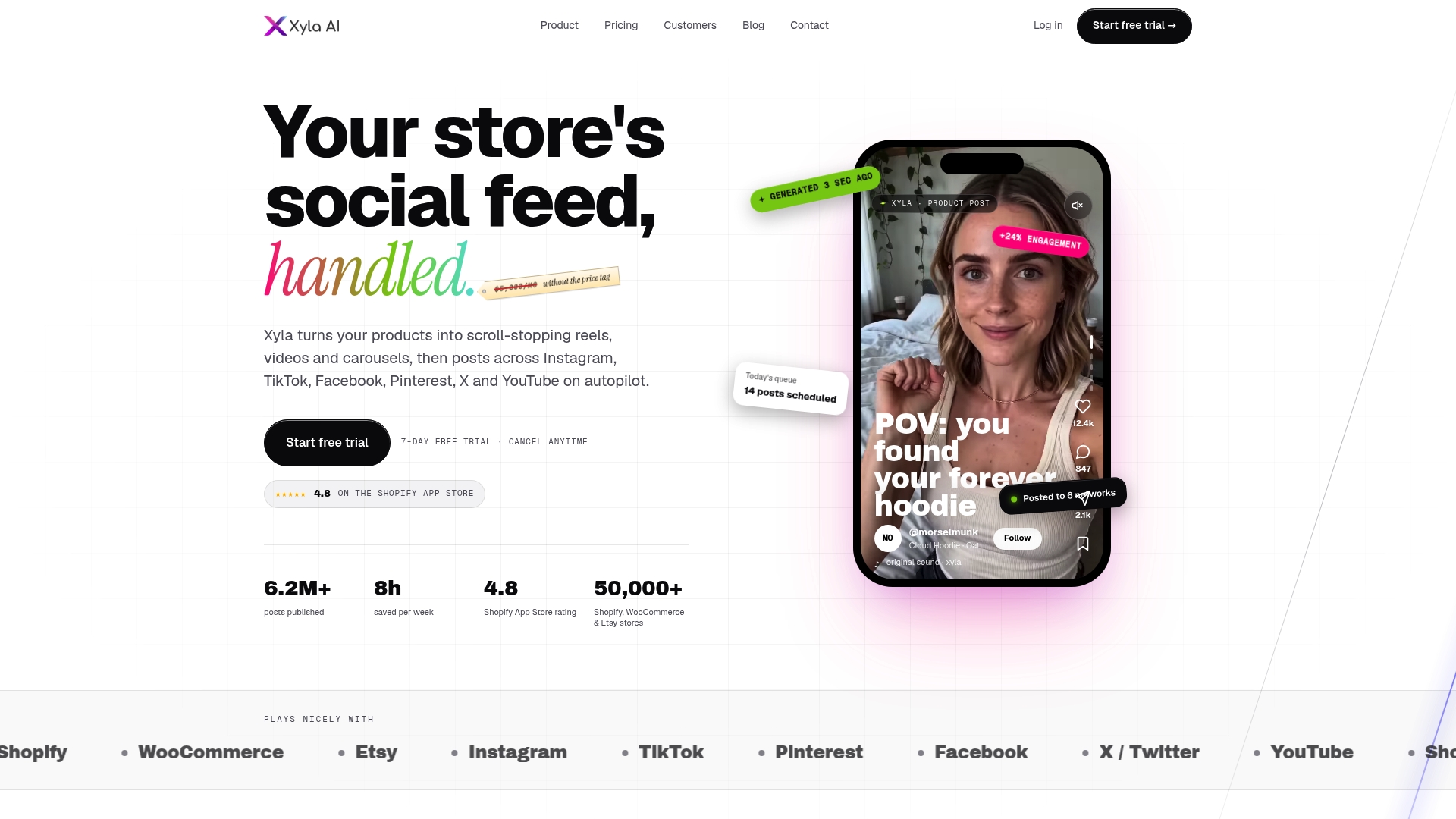
The practical case for pairing the two: catalog sync handles tagging, a creative automation tool handles the actual content pipeline, so you’re not manually shooting product video or writing captions every week on top of managing orders. For readers weighing DIY workflow tools like Zapier against a dedicated commerce automation platform, the difference comes down to creative output. A workflow tool moves data. Xyla AI generates the video and copy itself, straight from what’s already in your product catalog.
If you’re running a WooCommerce store and want both jobs handled without hiring a marketing hire, start with a free trial and connect your WooCommerce catalog directly.
Where to Verify These Setup Steps Yourself
Check the official WooCommerce Shopping on Instagram guide, the Facebook for WooCommerce documentation, and domain verification steps for exact, current requirements. For publishing workflows at scale, see this automated publishing overview.
Sources
- Shopping on Instagram and WooCommerce - WooCommerce
- Facebook for WooCommerce - WooCommerce
- Verifying your store domain for Meta - Shopline Help
- WooCommerce + Instagram Shopping: The Complete Integration Guide - Blocksy


