

Pinterest Product Pins Automation: A Setup Guide for Stores

Pinterest product Pins can be automated in two layers. A product feed or catalog keeps your prices, stock and links current as Product Pins. A content layer then creates and schedules fresh Pins from your product photos on a steady rhythm. Set up both and a store can stay active on Pinterest without someone pinning by hand every day. This guide covers what to prepare, what Pinterest requires, how to schedule, how to measure and what to check when something breaks.
TL;DR
- Automation works in two layers: a catalog feed for Product Pins, and scheduled fresh creative Pins that point to your product pages.
- Before anything else you need a Pinterest Business account, a claimed website, and a clean feed with the required attributes.
- Pinterest’s merchant rules apply to automated Pins as much as manual ones: a clear return policy, accurate price and stock, and real products.
- Keep volume steady and varied rather than flooding boards with identical images.
- Watch saves and outbound clicks, and check feed errors first when Pins stop appearing or show wrong data.
Table of Contents
- What Pinterest product Pin automation actually covers
- What to set up before you automate
- The rules automated Pins still have to follow
- How to automate it, step by step
- Avoiding repetitive or inaccurate Pins
- Measuring whether it works
- When Pins fail, look wrong or get no traction
- Choosing a tool that fits a small store
- Put Pinterest on autopilot with Xyla
- FAQ
- Sources
What Pinterest product Pin automation actually covers
The phrase gets used for several different things, so it helps to separate them.
Catalog-driven Product Pins. You upload or connect a product catalog, and Pinterest turns each item into a Product Pin carrying its price, availability and link. According to a Klaviyo guide to Pinterest marketing, catalog uploads can create Product Pins for organic and paid distribution without separate creatives for ads. This layer is mostly set-and-forget once the feed is healthy.
Pin creation and scheduling. This is where you publish new Pins, each with a board, destination link, title, description, alt text and a media source. Pinterest’s own Python API client documentation shows that Pins can be created, updated, deleted and listed programmatically, with analytics available per Pin or for several Pins at once. Any scheduling tool that connects to your Pinterest account is built on this kind of access.
Creative generation. The slowest part of Pinterest is usually making the image. Automation here means taking the product photo and title, applying a layout or generating a new visual, and attaching keyword-rich text before the Pin goes out.
Most stores need all three. The feed gives Pinterest accurate shopping data, while fresh Pins give people a reason to save and click.

What to set up before you automate
Automating a messy setup only produces messy Pins faster. Get these pieces in place first.
1. Business account and claimed website
You need a Pinterest Business account and a claimed website, plus the Pinterest tag if you want conversion tracking. Shopify’s guide to Pinterest product feeds lists these as the starting requirements, along with a feed in an accepted format.
2. A feed with the required attributes
A Pinterest product feed can be a CSV, TSV, XML or Google Sheets file. According to the same Shopify guide, it must contain eight attributes: ID, title, description, product-page link, image link, price, availability, and an item group ID for variants.
In practice most feed problems come from a few fields:
Attribute What to check ID Unique per product or variant, and never reused when you delete and recreate a listing Title Matches the product page and includes the details shoppers search for, such as color or size Description Plain text, written for a shopper rather than stuffed with keywords Link Goes straight to the product page, not a collection or a redirect Image link A clean, high-resolution photo, not a placeholder or a template Price Matches the live price on the page, in the right currency Availability Reflects real stock Item group ID Ties size and color variants together3. A store that passes the merchant review
Pinterest can pull your Pins if your website falls short. Its merchant guidelines require an easy-to-find, clear return policy with the process, time expectations and contact details. They also require a high-quality website and product pages, and rule out broken links, incomplete pages and forced registration to view products. Fix these before connecting any automation.
4. A product page worth landing on
Automated Pins only work if the destination converts. Check that the page loads quickly on mobile, that the image matches the Pin and that the price is visible without scrolling.
The rules automated Pins still have to follow
Automation does not change Pinterest’s policies; it only makes it easier to break them at scale. Three rules from the merchant guidelines matter most for automated workflows:
- Fresh data. Pinterest must have price and in-stock information from within the past seven days, obtained from daily feed syncing or from frequent reads of the meta-tags on your product pages. A feed that silently stops updating can put you out of compliance.
- A real item. A Product Pin must show a specific item that is available for purchase, and services are excluded.
- Prohibited categories. Some products, such as alcohol, cannot be Product Pins at all. If your catalog mixes categories, filter the restricted items out of the feed instead of hoping nothing slips through.
Also expect Pinterest to update products on its own schedule. Shopify’s guide notes that Pinterest scans hosted catalogs once every 24 to 48 hours to refresh Pins with new information, so a price change will not appear instantly. If you run a sale, update the feed ahead of time.
For current feed specifications and policy wording, treat Pinterest’s own help and policy pages as the final word, since they change.
How to automate it, step by step

Step 1: Connect your catalog
Start with the source of truth: your store. Shopify, WooCommerce and Etsy all hold titles, images, prices and stock. If you are on Shopify, our walkthrough on how to add Shopify products to Pinterest covers the connection in detail. Whichever route you take, make Pinterest read a hosted feed that refreshes on a schedule rather than uploading a one-off file that goes stale.
Step 2: Validate before you publish
Open the feed diagnostics in Pinterest after the first ingest. Fix missing images, mismatched prices and absent variant IDs now. Incomplete products are the most common reason items never become Pins.
Step 3: Generate Pin creative from product data
For each product, you want more than one visual. A clean product shot is the baseline. Add a lifestyle image, a short vertical video or a carousel-style Pin, and write the title and description around what shoppers type into Pinterest search. For WooCommerce stores, WooCommerce SEO automation can help with the search-optimized text that sits behind your Pins and product pages.
Step 4: Set the schedule
Steady beats bursty. According to an automation guide from Earnetics, established accounts with a proven content strategy post five to 10 fresh, high-quality Pins per week, and the same source suggests avoiding pinning identical creative more than twice in 48 hours. Newer accounts can start lower and build up.
A simple rotation works well:
- Pick your top 10 to 20 products by margin or sales.
- Create three to four creative variants for each.
- Rotate variants across boards over several weeks instead of repeating one image.
- Add seasonal products ahead of the season, since people plan on Pinterest early.
Step 5: Route traffic with tracking
Add UTM parameters to destination links so your analytics can tell Pinterest visits from everything else. If you want this set up properly, see our notes on social commerce analytics.
Avoiding repetitive or inaccurate Pins
The risk with automation is not that it posts too little. It is that it posts the same thing, or something wrong, with total confidence.
- Vary the creative. Different images, different angles and different first lines of text for the same product.
- Keep titles specific. A title like “Handmade ceramic mug, speckled glaze, 12 oz” outperforms “Mug” as a search target and gives shoppers real information.
- Lock down stale items. When a product sells out or is discontinued, it should drop out of both the feed and the posting queue.
- Review the first batch by hand. Approve the first 20 to 30 Pins before letting any tool run unattended, then spot-check weekly.
For a deeper look at safe approaches, read our guide to safe Pinterest auto posting methods.
Our take on Pinterest automation
Most store owners do not fail on Pinterest because they lack ideas. They fail because the work is relentless: new images, new text, new boards, every week, for every product. Tools that only schedule what you already made leave the hardest part on your plate.
That is why we built Xyla around the product data you already have. It turns listings from Shopify, WooCommerce and Etsy into new visual content, such as reels, videos and carousels, customizes it for each network, and posts it on a calendar. Pinterest is one of the networks it supports alongside Instagram, TikTok, Facebook, X and YouTube, so one catalog can feed every channel instead of six separate routines.
We also believe store owners should not have to count credits every time they want a new image. AI content generation is part of our standard plans rather than a per-generation charge, which makes it practical to produce several variants per product, the exact thing a healthy Pinterest rotation needs.
The goal is simple: you keep the store, and the posting runs in the background, saving around eight hours a week.
Toby
Measuring whether it works
Pinterest is a slow-burn channel. Pins can surface weeks after posting, so judge results over months, not days.
Start with Pinterest’s own analytics. Shopify’s Pinterest marketing guide recommends using Pinterest Analytics to see which Pins gain saves and outbound clicks, then using those results to adjust your content themes. Translated into a routine:
- Monthly: list your top 10 Pins by outbound clicks and note what they share, whether it is the product type, the image style or the title format.
- Monthly: list the Pins with many impressions but no clicks. These usually need a stronger image or a clearer title.
- Quarterly: compare Pinterest sessions and orders in your store analytics, using the UTM tags from earlier.
Larger catalogs can feed this data into a dashboard. The Earnetics guide mentions tools such as BigQuery, Looker or Data Studio for funnel analysis and alerts on feed failures or traffic drops. Most small stores will not need that, but a simple spreadsheet with weekly clicks and orders goes a long way.
When Pins fail, look wrong or get no traction
Work through this checklist in order, from most to least common.
- Feed errors. Open the diagnostics in Pinterest and read the error report. Missing attributes, unreachable images and mismatched prices are usual.
- Publication status. Confirm the Pin actually published and was not held back by an image-processing error or a policy rejection.
- Link validation. Click each destination link. A product that moved or a redirect chain can break the Pin.
- Price or stock mismatches. If a Pin shows the wrong price, compare the feed with the live page, then remember Pinterest may take a day or two to refresh.
- Duplicates. Check whether the same creative is pinned repeatedly to the same board.
- Engagement drops. If saves and clicks fall, compare against seasonality and your posting volume before changing everything.
These checks echo what the Earnetics guide recommends: monitor feed errors, link-validation failures and drops in save rate, and make sure any automated pipeline handles API rate limits with retries and checks for duplicate Pins. If you use a tool, this is mostly its job, but you should still know where to look.
Choosing a tool that fits a small store
You do not need an enterprise stack. When comparing options, ask:
- Does it read your product catalog directly, or do you upload files by hand?
- Does it create new visuals, or only schedule finished ones?
- Does it also cover your other networks, so you are not managing five dashboards?
- Can you review and approve posts before they go live?
- Is the pricing predictable, or does it depend on credits per image?
If the answers matter to you, those are the questions our own product was designed around. For a wider view of the category, see our overview of how to automate your social media marketing.
Put Pinterest on autopilot with Xyla
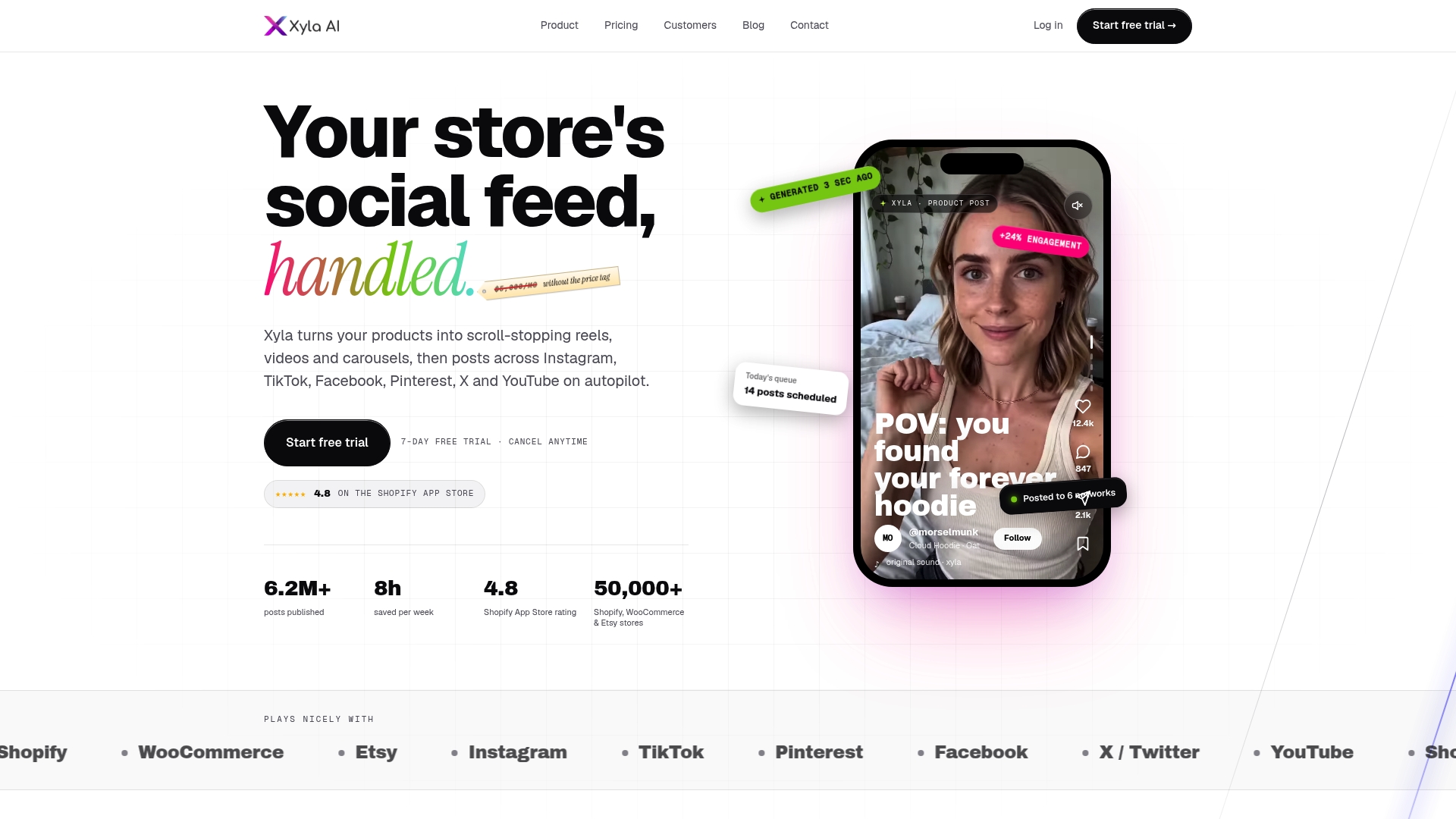
Xyla connects to your Shopify, WooCommerce or Etsy store, turns product listings into reels, videos and carousels, tailors them to each network and publishes them on a schedule. Plans start at $29 per month, or $209 per year on the entry annual plan, and a free trial comes first. You can compare tiers on the Xyla pricing page.
Shopify merchants can see the plans built for their stores on the Shopify page, and Etsy sellers on the Etsy page.
FAQ
Can I fully automate Pinterest product Pins?
Mostly, yes. A synced product feed handles the shopping data, and a scheduling tool handles fresh creative Pins. You should still review early batches and check feed diagnostics regularly, because policy or data errors can slip through any automated system.
How often does Pinterest update product Pins from my feed?
According to Shopify’s feed guide, Pinterest scans hosted catalogs once every 24 to 48 hours. Pinterest’s merchant guidelines also require current price and stock data within seven days, so a regularly refreshed feed matters.
How many Pins should an automated account post?
There is no universal number. One automation guide suggests five to 10 fresh, high-quality Pins a week for established accounts. New accounts can begin lower and increase as they learn what performs.
Do I need a Business account to post product Pins?
Yes. Product feeds and catalog features require a Pinterest Business account with your website claimed. Check Pinterest’s help pages for the current setup steps, because the interface changes.
Is automating Pinterest against the rules?
Pinterest’s merchant guidelines focus on what you publish, not how. Accurate product data, a clear return policy and no prohibited items matter more than whether a human or a tool pressed publish. Avoid spammy repetition and stay within the platform’s published policies.
Sources
- Pinterest merchant guidelines
- Pinterest Python API client: PinsApi documentation
- How To Set Up a Pinterest Product Feed (Shopify)
- Your Pinterest Marketing Strategy Guide (Shopify)
- 12 tips for a Winning Pinterest Marketing Strategy (Klaviyo)
- Automate Pinterest at Scale: Pins, Boards, and Analytics (Earnetics)


