

3 Safe Pinterest Auto Posting Methods for E-commerce Stores
Auto-posting to Pinterest works three ways: an RSS feed that maps to a board, Pinterest’s own scheduler or API, or a full automation platform that ingests your product feed and formats pins for you. RSS is free but slower, since pins built from a feed can take a day or more to appear and daily publish caps apply. For e-commerce stores with active catalogs, an integrated scheduler that turns product listings into pins automatically is the most reliable path.
TL;DR:
- RSS auto-posting is free but slow and limited to feeds with proper images and matching claimed domains, which may delay pin visibility by over a day.
- Native scheduling and API options offer faster, more accurate control but require manual creation of each pin, making them better for smaller or less frequently updated catalogs.
- Automation platforms can scale to large product catalogs, automatically generate pins from product images, and schedule posts, but their reliability depends on the specific tool used.
- Proper setup involves claiming your website, ensuring feeds contain images, and assigning unique IDs to avoid duplicate pins or missed updates.
- Full automation suits large evergreen catalogs, while manual review remains essential for product launches or seasonal campaigns to prevent repetitive or spammy posting.
Table of Contents
- How Pinterest Auto Posting Works: RSS vs API vs Automation Platforms
- Step-by-Step Checklist for Connecting an RSS Feed or Scheduler to Pinterest
- Choosing the Right Automation Workflow for Your Pinterest Content
- How Xyla Handles Pinterest Automation for E-Commerce Stores
- When to Automate Fully and When to Keep a Human in the Loop
- Turn Your Product Feed Into Scheduled Pins Automatically
- Where This Setup Guidance Comes From
- Sources
How Pinterest Auto Posting Works: RSS vs API vs Automation Platforms
Each method handles the same job differently, and picking the wrong one is why so many Pinterest accounts sit half automated.
RSS auto-publishing pulls new items from a feed URL and turns them into pins on a schedule you set inside Pinterest’s business settings. The catch: Pinterest requires that feed’s domain to match a website you’ve already claimed, and every item needs an image enclosure or Pinterest simply skips it.
The native scheduler and API give you more direct control. You queue pins with specific images, titles, descriptions, and destination links, including idea pins, and Pinterest’s own guidance points creators toward these workflows for consistent output without manual daily posting.
Automation platforms sit a layer above both. They ingest RSS, a product feed, or a webhook, then reformat images, crop for Pinterest’s aspect ratio, and publish either through the official API or a connected integration.
- RSS: free, slow, limited to what your feed already contains
- Native scheduler/API: fast, precise, but still manual creative work per pin
- Automation platform: scales across a catalog, generates creative automatically, but depends on the tool’s reliability
Control goes down as scale goes up. Choose based on how many products or posts you’re actually pushing weekly.
Step-by-Step Checklist for Connecting an RSS Feed or Scheduler to Pinterest
Getting this wrong usually traces back to one of two things: an unclaimed domain or a feed missing images. Here’s the order that avoids both.
- Claim your website in Pinterest business settings first. The RSS feed you submit later must match this exact domain, not a subdomain or a redirect.
- Check your feed for image enclosures. Every item needs a featured image tag. Feeds pulled straight from some blog platforms strip this out by default.
- Submit the RSS URL in Pinterest’s auto-publish settings and choose the destination board.
- Authorize the connection. If you’re using a third-party tool instead of Pinterest’s native feature, grant it publish access through OAuth, not just read access.
- Set your cadence. Space pins out rather than dumping the whole feed at once. Pinterest processes new items in batches, not instantly.
- Run a test item through the feed and confirm the pin lands on the correct board with the right image and link before trusting it unattended.
- Watch for common failures: missing images, malformed feed XML, expired OAuth tokens, and duplicate items being republished because they lack a stable unique ID.
Pro Tip: Give every feed item a permanent, unique identifier (a product SKU or post slug works well). Tools and Pinterest itself use this to prevent republishing the same item as a “new” pin weeks later.
Budget a day for setup and testing, not five minutes. The feed validation step alone catches most first-time failures.
Choosing the Right Automation Workflow for Your Pinterest Content
There’s no single best tool category here. There’s a best fit for your catalog size and how often your content changes.
Four workflow types cover most situations:
- RSS-first automator: good for blogs or small catalogs with a stable feed and infrequent new items
- Scheduler with official API access: best when you want manual creative control but automated timing
- CMS/webhook-driven pipeline: fires a new pin the moment a blog post or product goes live, no polling delay
- AI-native creative generator: builds pin images and copy from product photos automatically, then schedules them
When evaluating any option, check for official API access (not a scraped workaround that breaks when Pinterest updates its systems), how it handles image cropping and alt text, what pin formats it supports, its scheduling window, whether it deduplicates by item ID, and what analytics it surfaces.
A typical workflow looks like this: a blog publishes a post, RSS picks it up within hours, and a pin goes live automatically pointing back to the article. On the commerce side, a new product feed entry triggers AI-generated creative, which then enters a queue and publishes on a spaced schedule rather than all at once.
Measure success with referral traffic, saves, impressions, and click-through rate. Give any new workflow at least two to three weeks before judging it. Pinterest’s own scale as a visual search channel means impressions often climb before clicks catch up.
How Xyla Handles Pinterest Automation for E-Commerce Stores
Store owners rarely have time to hand-build a pin for every product, which is the actual problem auto-posting solves. Xyla connects directly to Shopify, WooCommerce, and Etsy product feeds, turning listings into pin-ready creative and scheduling it across networks including Pinterest without someone opening a design tool every morning.
Automating the repetitive parts of social posting, feed to creative to schedule, is what typically saves store owners around eight hours a week they’d otherwise spend on manual content creation.
To connect a store, you need product images already uploaded, a working feed URL, and correct destination links pointing back to each product page. Xyla’s Shopify product setup guide walks through mapping those fields before the first pin publishes.
When to Automate Fully and When to Keep a Human in the Loop
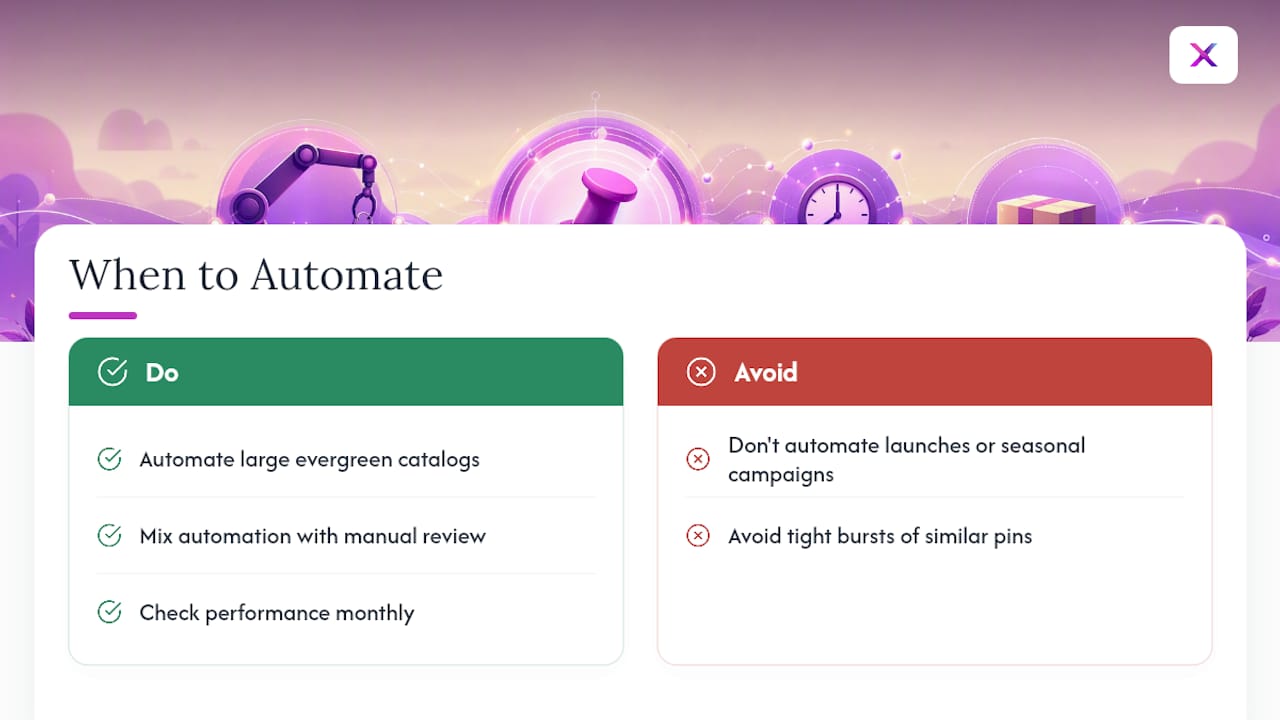
Full automation earns its keep on large, evergreen catalogs, where hundreds of products need consistent pins and nobody has time to build them one by one. It earns nothing on a product launch or a seasonal campaign, where a generic auto-generated pin can undersell a moment that deserved a real creative decision.
The guardrail that matters most is spacing and variance: automated pins published in tight bursts with repeated visuals read as spam to both Pinterest and human viewers. Mix automated cadence with manual review on your highest-value pins, and check performance monthly, not just at setup.
— Toby
Turn Your Product Feed Into Scheduled Pins Automatically
If you’re running a Shopify, WooCommerce, or Etsy store, Xyla AI turns your existing product feed and blog posts into Pinterest-ready pins and schedules them without you touching a design tool. Instead of building creative manually or babysitting an RSS feed that only updates once a day, you get AI-generated pin images, titles, and descriptions pulled straight from your listings.
Setup mirrors what’s outlined above: connect your store, confirm your product images and links, and let the schedule run. From there you can layer in other networks the same way. Start with the step-by-step automation walkthrough to see exactly how a product listing becomes a published pin, and try it on your own catalog with a free trial.
Where This Setup Guidance Comes From
- Pinterest’s RSS auto-publish documentation for feed rules, timing, and daily limits
- Search Engine Land’s coverage of Pinterest’s search role for context on measuring referral impact
- Feedloop’s overview of automated publishing architectures for background on feed-to-publish pipelines


