

Save 8 Hours a Week With Instagram Product Tagging for Online Stores
Instagram product tagging turns your Feed posts, Reels, and Stories into clickable storefronts, sending shoppers straight to a product page instead of making them hunt through your bio link. It works only once you have an approved Commerce Manager catalog connected to a Business or Creator account. For physical-product stores, that’s the single biggest lever for cutting friction between “I like this” and “I bought this.”
TL;DR:
- You need a public Business or Creator account with a connected, approved commerce catalog to enable product tagging on Instagram.
- Tag limits are five per image and twenty per carousel, with tagging occurring during post creation, not afterward.
- It is best to tag one to three products per image or slide to maximize tap rates and engagement.
- Troubleshooting involves checking catalog connection, account type, approval status, and ensuring links are up-to-date; rejection often relates to policy issues.
- Automating content creation and tagging with tools like Xyla AI can save around eight hours weekly and reduce errors from manual uploads.
Table of Contents
- What You Need Before You Can Tag Products on Instagram
- How Do You Set Up Product Tagging on Instagram?
- How Do You Tag Products in Feed Posts, Reels, and Stories?
- What Makes Shoppers Actually Tap Your Product Tags?
- Why Isn’t “Tag Products” Showing Up on Instagram?
- How Do You Know If Your Product Tags Are Actually Working?
- How a Small Team Keeps Tagged Content Running Every Week
- Save Time on Shoppable Content With Automation
- Where to Read More on Instagram Shopping Setup
- Sources
What You Need Before You Can Tag Products on Instagram
Before you touch the tagging interface, three things have to be in place. Skip any one of them and the “Tag Products” option simply won’t show up when you go to publish.
Your account has to be a Business or Creator account, and it has to be public. Personal accounts don’t get access to shopping features, period. Beyond that, you need a working catalog and Meta’s sign off on it.
- Account type: Business or Creator, set to public, not private
- Catalog fields: every product needs a title, image, price, and working link at minimum
- Integration: connect through Shopify or WooCommerce for automatic syncing, or upload manually via CSV
- Approval: submit through Commerce Manager and wait for review
- Diagnostics: check the Catalog and Commerce Account status tabs in Commerce Manager for flagged errors before you submit
If you run Shopify, connecting your store directly avoids the manual upload headache entirely. Xyla AI’s guide on connecting Shopify to Instagram walks through the integration if you haven’t done it yet. Print or screenshot the checklist above; it’s the first thing to check when tagging mysteriously stops working later.
How Do You Set Up Product Tagging on Instagram?
Setup happens in Commerce Manager, not the Instagram app itself, and the process is linear enough to finish in one sitting if your product data is clean.
- Build your catalog. Go to Commerce Manager and create a catalog manually, through a CSV upload, or by connecting a platform feed like Shopify or WooCommerce. Every item needs a title, image, price, and a link that actually resolves.
- Link Instagram to a Facebook Page. Through Accounts Center, connect your Instagram account to a Facebook Page, then attach your catalog to that page’s commerce account.
- Submit your shop for review. Meta checks your account and catalog against its commerce policies. Approval typically takes one to five business days, though it can stretch longer during high-volume periods like holiday shopping season.
- Test it. Once approved, start a draft post and look for “Tag Products” on the share screen. If it’s there, you’re live.
Pro Tip: Submit your shop review a full week before a product launch, not the day before. Approval delays are the number one reason store owners miss their own launch date.
One detail that trips people up: tagging happens during the post creation flow itself. Captions no longer support product tags, and retroactive tagging on already-published posts is limited, so build tagging into your publishing habit from day one rather than treating it as an afterthought.

How Do You Tag Products in Feed Posts, Reels, and Stories?
The mechanics change slightly depending on the format, and each one has its own tag limits worth memorizing.
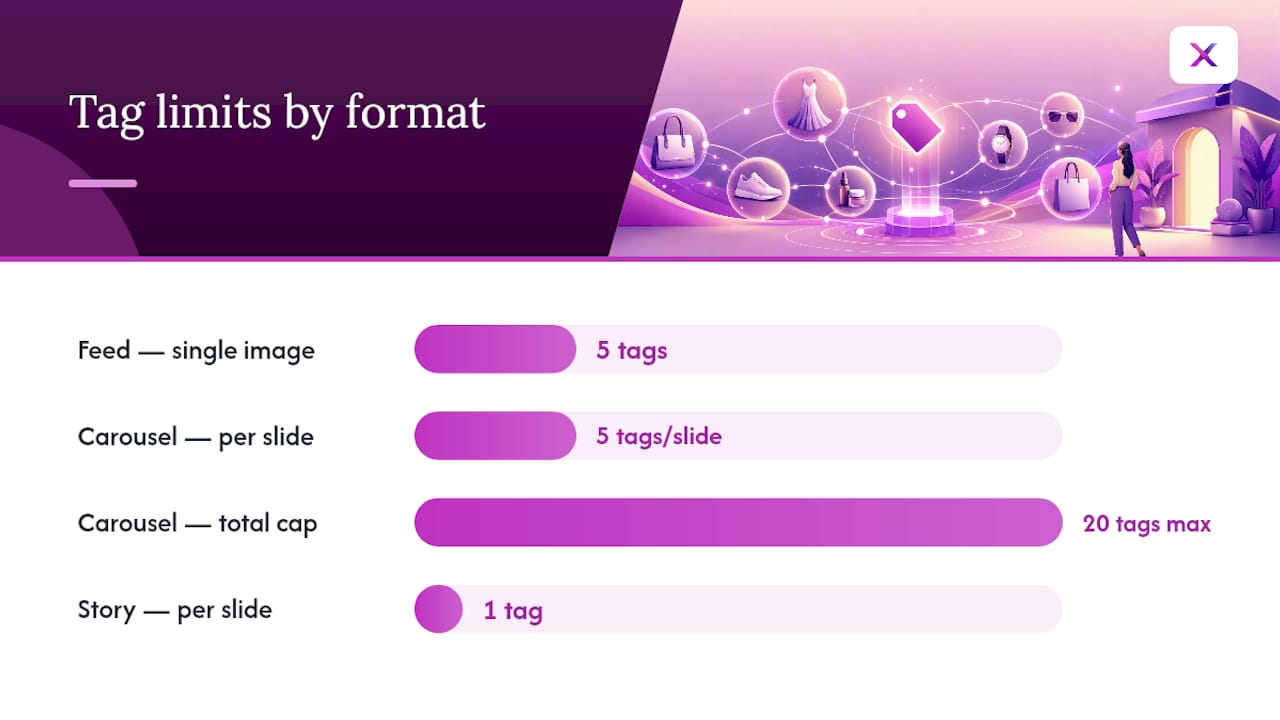
Feed posts and carousels: Tag on the final share screen, before you post, not after. Search your catalog by product name and place the tag directly on the item in the photo. You get up to 5 tags per single image, and up to 5 per carousel slide with a cap of 20 across the whole carousel.
Reels: Tagging happens at publish time, same as feed posts. Tagged Reels display a shopping bar or “View Products” list beneath the clip, and Reels with product tags tend to see higher reach in shop-discovery surfaces compared to untagged ones. Rendering can be inconsistent, though, especially with certain audio tracks.
Stories: Use the Product sticker, one per slide. You can restyle its color and size, and viewers tap or swipe up to see details, depending on your region’s Stories interface.
- Tag limits reset per post, not per account, so plan each asset individually
- Retroactive tagging exists for some formats but isn’t reliable, so tag while you create
- Carousels reward variety: different products on different slides outperform the same product repeated
What Makes Shoppers Actually Tap Your Product Tags?
Tagging every visible item in a photo feels thorough, but it usually backfires. Practitioners recommend sticking to one to three tags per image or slide because too many options slows the decision down and tap rates drop.
- Place tags directly on or beside the product, not floating in empty background space
- Mix close-up product shots with lifestyle images showing the item in use
- Approve trusted creators in your Shopping settings so their UGC content can carry your product tags too
- Write product titles and descriptions with actual keywords shoppers would search, not internal SKU names
- Add a direct call to action in your caption (“Tap to shop the jacket”) instead of assuming the tag will do the selling alone
- Rotate which products you tag weekly so your catalog doesn’t feel static
Pro Tip: Test the same photo twice, once with a lifestyle crop and once as a tight product shot. The version that gets more tag taps tells you which style your audience actually responds to, and that’s cheaper than guessing.
Why Isn’t “Tag Products” Showing Up on Instagram?
If the tagging option is missing entirely, check catalog connection status first, then account type, then whether your region supports shopping features at all. This covers most cases.
- No “Tag Products” option: catalog isn’t connected, shop isn’t approved yet, or the account reverted to personal
- Product stuck in review or rejected: check Commerce Manager’s diagnostics tab for the specific policy flag, which is usually more informative than the generic rejection message
- Broken links after tagging: run a catalog audit for SKU mismatches or outdated URLs; stale links quietly kill engagement
- Reels not showing tags: certain audio tracks or region settings can block the tag overlay from rendering; editing the post to reattach the tag or swapping the audio usually fixes it
How Do You Know If Your Product Tags Are Actually Working?
Tagging without measurement is just decoration. Track tag taps, product detail page views, referral traffic, and conversion rate, and tie each one back to revenue using UTM parameters on your catalog links.
- Run A/B tests: post the same creative tagged and untagged, then compare click behavior
- Audit your catalog weekly for broken links, wrong prices, or out-of-stock items still showing as available
- Cross-reference Instagram Insights with your site analytics to see where sales actually close
Since Meta removed the global Shop tab, discovery now happens through tagged posts and Reels rather than a dedicated shopping destination, which means the tag itself is your referral channel, and the purchase usually finishes on your own site, not inside the app.
Cart abandonment is a real reason to keep that path short. Global cart abandonment rates sit high enough that every extra tap between “interested” and “checkout” costs you sales, and a well-placed product tag removes several of those taps outright.
How a Small Team Keeps Tagged Content Running Every Week
A workable cadence looks like this: plan the week’s content, sync the catalog for accuracy, build tagged assets, publish, then check performance before the next cycle starts. One person usually owns the catalog, another creates content, someone approves what goes live, and someone else watches the analytics.
For a product launch, that might mean a tagged Reel demo goes out first for reach, a tagged Story sequence follows for immediate action, and a tagged feed carousel closes the loop with full product detail. Three formats, three jobs, one product.
— Toby
Save Time on Shoppable Content With Automation
Running that weekly cadence by hand works, but it eats hours you probably don’t have. Xyla AI turns your existing product listings into shoppable Reels, carousels, and UGC-style videos automatically, then schedules and publishes them across Instagram, TikTok, and Facebook with tags attached and catalog links kept in sync.
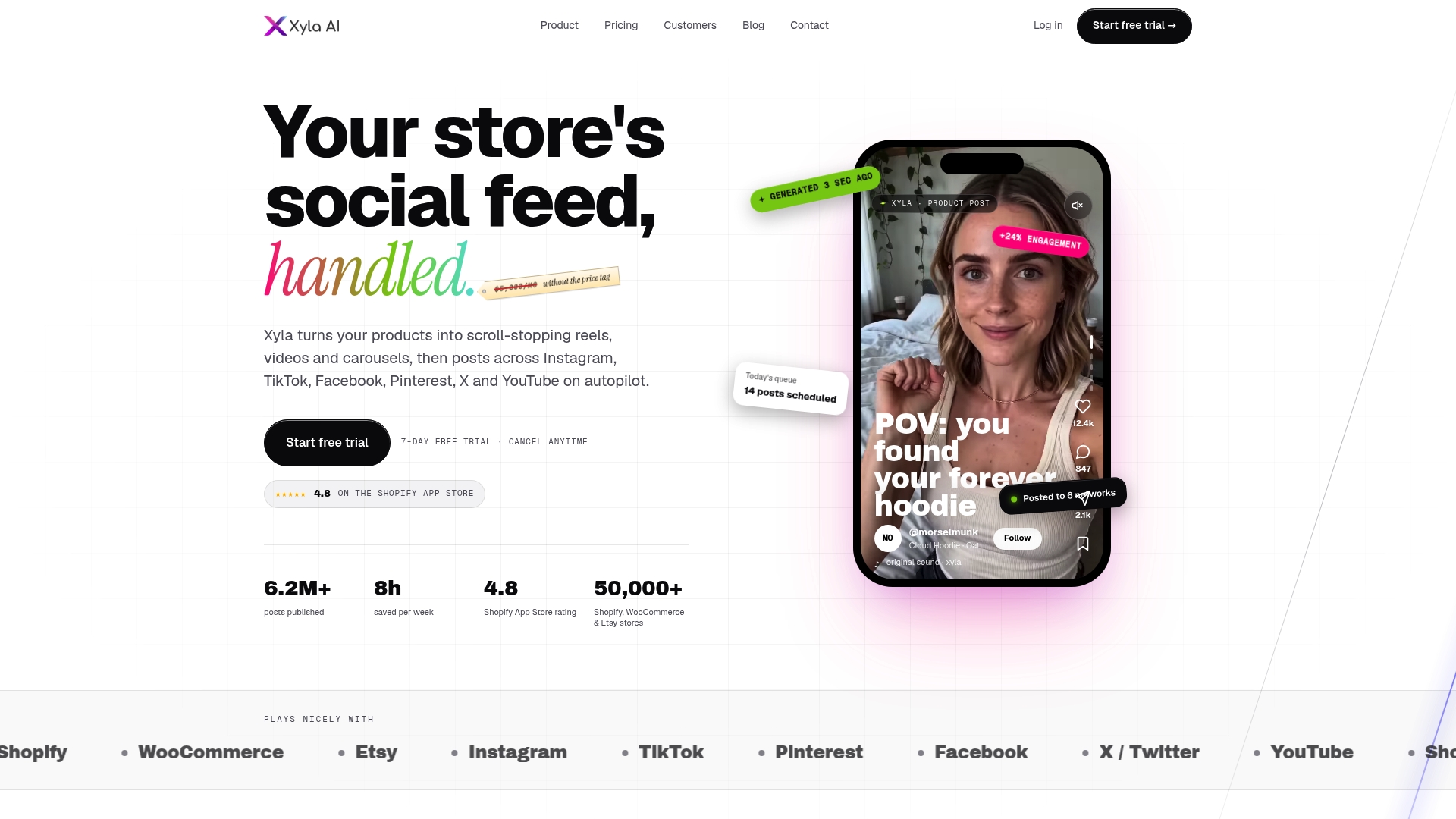
That syncing matters more than it sounds. Manual tagging is where SKU mismatches and dead links creep in, and those are exactly the errors that quietly tank conversion. Automating the connection between your catalog and your posts closes that gap, and store owners using Xyla AI typically get back around eight hours a week that used to go into content creation and scheduling. If you’re already juggling inventory, orders, and everything else running a store demands, that’s time worth reclaiming. Start with how Xyla AI automates social media marketing to see the full workflow, or check out AI-generated UGC video if shoppable Reels are your priority.
Where to Read More on Instagram Shopping Setup
- Instagram Help Center: tagging products in photos
- Shopify’s guide to Instagram product tagging
- SocialRails’ shoppable posts setup guide
- Product page optimization for higher conversions
Sources
- Tag products in your photos on Instagram - Instagram Help Center
- Instagram Product Tagging: How to Tag Products on IG - Shopify
- Instagram Shoppable Posts: Complete Setup Guide for 2026 - SocialRails
- Online shopping cart abandonment rate worldwide - Statista


