

X Auto Posting: How to Schedule and Automate Posts Safely

X auto posting means writing or generating posts ahead of time and letting a tool publish them at set times. You can do it with X’s own scheduling on the web, with a dedicated scheduler, or with a platform that builds posts from your content and publishes them for you. The safe version keeps a person in charge of what goes out and keeps the automation inside X’s rules. This guide covers the options, the setup steps, the limits and what to review before anything goes live.
TL;DR
- You can schedule posts on X from the web compose box, use a scheduler with a queue, or let a platform generate and publish posts from your product catalog.
- Automating your own posts is allowed. Spammy replies, mass follows and anything that tries to get around X’s limits is not, and you are responsible for what your connected apps do.
- Plan a mix of useful posts and product posts, then queue a week at a time and review the queue before it runs.
- Pick a scheduler on formats, queue controls, multi-network support and analytics, not on the number of features.
- For store owners, a tool that turns product listings into posts for X and other networks saves the most time.
Table of Contents
- What X auto posting actually covers
- How to schedule posts on X natively
- Four ways to automate X posts
- What you can automate safely, and what you should not
- Set up an automatic X posting schedule in six steps
- How AI helps draft X posts, and what a person should review
- How to choose an X post scheduler
- Posting frequency and timing on X
- Troubleshooting common problems
- Our perspective on X auto posting
- Put your X posting on autopilot with Xyla
- Where X fits in a wider content system
- FAQ
- Sources
What X auto posting actually covers
People use the phrase for three different things, and the right tool depends on which one you mean.
- Scheduling. You write a post, pick a date and time, and X or a scheduler publishes it. Nothing is generated. This is the simplest form and the one with the least risk.
- Queues and recurring posts. You fill a queue, and the tool publishes from it on a repeating schedule. Evergreen posts, such as a care tip or a shipping reminder, can cycle through again after a few weeks.
- Feed-based or generated posts. The tool reads a source, such as an RSS feed, a spreadsheet or a store catalog, and builds posts from it. AI can draft the copy and pick images.
The same logic applies across networks. If you already automate other channels, our guide on how to automate your social media marketing step by step covers the general workflow, and X slots into it as one more destination.
How to schedule posts on X natively
X’s help center documents scheduling in the compose box on the web version of x.com. The flow is short:
- Open x.com in a desktop browser and start a new post.
- Write the post and attach images, GIFs or video.
- Select the calendar icon in the compose box.
- Choose the date and time, then confirm.
- Open your unsent posts to review, edit or delete anything you scheduled.
This works well for a handful of announcements: a launch, a sale reminder, a restock. It does not give you a content calendar across several networks, a queue that refills itself or reporting that compares posts. Features can change, so check X’s help center for the current options on your account type, especially for long posts and for mobile.
Four ways to automate X posts
Approach Best for Effort to set up What you give up Native scheduling on the web A few planned posts Minutes No queue, no multi-network view Spreadsheet or no-code bot Technical users who like control Hours You maintain it when something breaks General scheduler with a queue Creators and agencies posting original text An afternoon You still write every post Catalog-driven platform Stores with many products One connection, then review You approve and tune the output instead of writing from scratchThe first two rows appear in most guides that rank for this topic. They work, but spreadsheet-driven bots mean you own the troubleshooting: expired logins, failed uploads, duplicate posts after a timeout. If your job is running a store, not running a bot, the later rows save more time.
What you can automate safely, and what you should not
X publishes automation rules that spell out what is permitted. The rules are written mainly for developers, but the page makes one point every store owner needs: you are ultimately responsible for actions taken with your account, including by apps you authorize. If automated activity breaks the rules, X may filter your posts from search or suspend the account.
In practice, the safe list looks like this:
- Publishing your own posts on a schedule: product highlights, tips, announcements, holiday posts.
- Posting from a feed you control, such as your blog or catalog.
- Queuing evergreen content and refreshing it periodically with new wording and images.
And the list to avoid:
- Bulk replies or mentions to people who did not ask to hear from you.
- Auto-follow and auto-unfollow routines.
- Posting the same text across many accounts.
- Any tool that asks for your password instead of using X’s official authorization screen.
Before you connect any tool, read what permissions it requests, and remove access for apps you no longer use from your X settings.
Rate limits and why a good tool respects them
If you build your own automation through the API, limits apply. X’s documentation lists rate limits of 100 post-creation requests per 15 minutes per user, and a request over the limit returns a 429 error. Ordinary store posting is nowhere near that ceiling: a few posts a day is a rounding error. The limit matters because it shows what X treats as abnormal. If a tool promises hundreds of posts an hour, that is a warning, not a feature.

The same documentation describes developer guidelines for fully automated accounts: use only the official API, honor opt-outs right away, and label bot accounts as automated with a link to a human-run account. A brand account that publishes its own scheduled posts is a different case from a bot account, but the principle is the same. Be transparent, and keep a human responsible.
Set up an automatic X posting schedule in six steps
- Decide the job of the account. For a store it is usually three things: show products, build trust and answer customers. Write that down in one line. Every post should serve at least one.
- Choose a rhythm you can keep. Consistency beats volume. A realistic starting point for a small store is one post a day on weekdays. You can raise it once the review habit is solid.
- Build content pillars. Mix product posts with useful and inspirational ones: how to use the item, behind-the-scenes shots, customer photos, a fact about the materials. Our list of evergreen social posts that work without daily posting is a good starting bank.
- Create a week of posts in one sitting. Batch writing is faster than writing daily. Draft copy, attach images, and keep links short. If you use AI for drafts, see the review checklist below.
- Set times, then adjust. Start with times when your customers are likely online, such as lunch hours and evenings in your main market. Compare results after a few weeks and move slots toward what performs.
- Review the queue every week. Check for outdated prices, sold-out items, broken links and posts that clash with current news. Pause the queue when something sensitive happens.
The mix matters as much as the schedule. One widely shared store guide suggests a split of roughly three useful or inspirational posts for every product post. Treat that as a starting hypothesis and use your own analytics to tune it.
How AI helps draft X posts, and what a person should review
AI is good at the repetitive part: turning a product title, description and photos into several versions of a short post, each with a different angle. It does that in seconds and does not get bored on the fortieth listing.
A person should still check four things before anything publishes:
- Facts. Price, size, material, shipping claims and stock. A wrong detail costs more than a missed post.
- Tone. Does it sound like your brand? X rewards a distinct voice, and generic copy gets scrolled past.
- Links and media. Does the link open the right product, and does the image show the right variant?
- Context. Is the post tone-deaf next to today’s news, a holiday or a customer complaint?
If you want prompts to start from, our guides to AI social captions for ecommerce and copy-paste product caption prompts show how to feed the model the details it needs.
One more point about approval: keep a clear record of what was approved. If a draft is edited after you sign off, you want the scheduler to publish the version you checked, not a later one. Ask any tool you consider how it handles edits to queued posts.
How to choose an X post scheduler
Skip the feature lists and judge a scheduler against five questions:
- Which formats does it publish? Text, images, video, threads and polls. Check that images and video keep their quality after upload.
- How does the queue work? Look for drag-and-drop ordering, time slots, pausing and recurring posts for evergreen content.
- Does it cover the other networks you use? If you also post on Instagram, TikTok, Facebook or Pinterest, one calendar saves a lot of switching. Each network needs its own format and wording; our adapt and stagger workflow explains how to avoid pasting the same post everywhere.
- What does the analytics view show? You want post-level results and the best times, so the schedule improves over time.
- Where does the content come from? A scheduler is only as fast as your writing. If you sell products, a tool that reads your catalog removes the biggest bottleneck.
Pricing is the last check. Compare the cost per month with the hours you save, and confirm whether AI generation is included or charged per use.
Posting frequency and timing on X
There is no universal best time, and any article that gives one number for every business is guessing. What works is a method:
- Start with a modest cadence you can keep for a quarter.
- Spread posts across different hours for the first two or three weeks.
- Look at which slots earned the most impressions and clicks, then concentrate there.
- Keep room for live posts: replies, customer questions and reactions to events cannot be scheduled.
That last point is what keeps an automated account from feeling like one. Schedule the base layer, then show up in person a few times a week.
Troubleshooting common problems
- A scheduled post did not publish. Check that the connection is still authorized. Logins expire, passwords change and permissions get revoked.
- A post published twice. This can happen with homemade automations when a request times out and the script retries. A mature scheduler handles this for you. If you build your own, record each job and its returned post ID before retrying.
- Images look cropped. Each network crops differently. Use a tool that sizes assets for each destination.
- Reach dropped suddenly. Look for repeated identical text, too many links in one post or a burst of posts at once. Space posts out and vary the wording.
- You hit a 429 error through the API. You exceeded a rate limit. Wait for the window to reset and lower the request rate.
Our perspective on X auto posting
We built Xyla for store owners, and what we hear most is that nobody lacks ideas for posts. People lack the hours to produce them.
A generic scheduler solves the last step, the clicking of Publish, and leaves the hardest part with you. For a store with 50 or 500 products, the work is turning each listing into something worth stopping for: a short video, a carousel, a sharp line of copy. That is the work we think should be automated.
That is why Xyla starts from your real product data in Shopify, WooCommerce or Etsy and creates new content from it, then adapts each asset to the network it is going to, including X. Our approach is to build AI generation into the standard plans rather than charge for each generation, so you are not counting credits every time you want a new variation.
Our advice is the same however you post. Keep a human review step, mix useful content with product content, and let the schedule handle the repetition so you can spend your time on customers.
Toby
Put your X posting on autopilot with Xyla
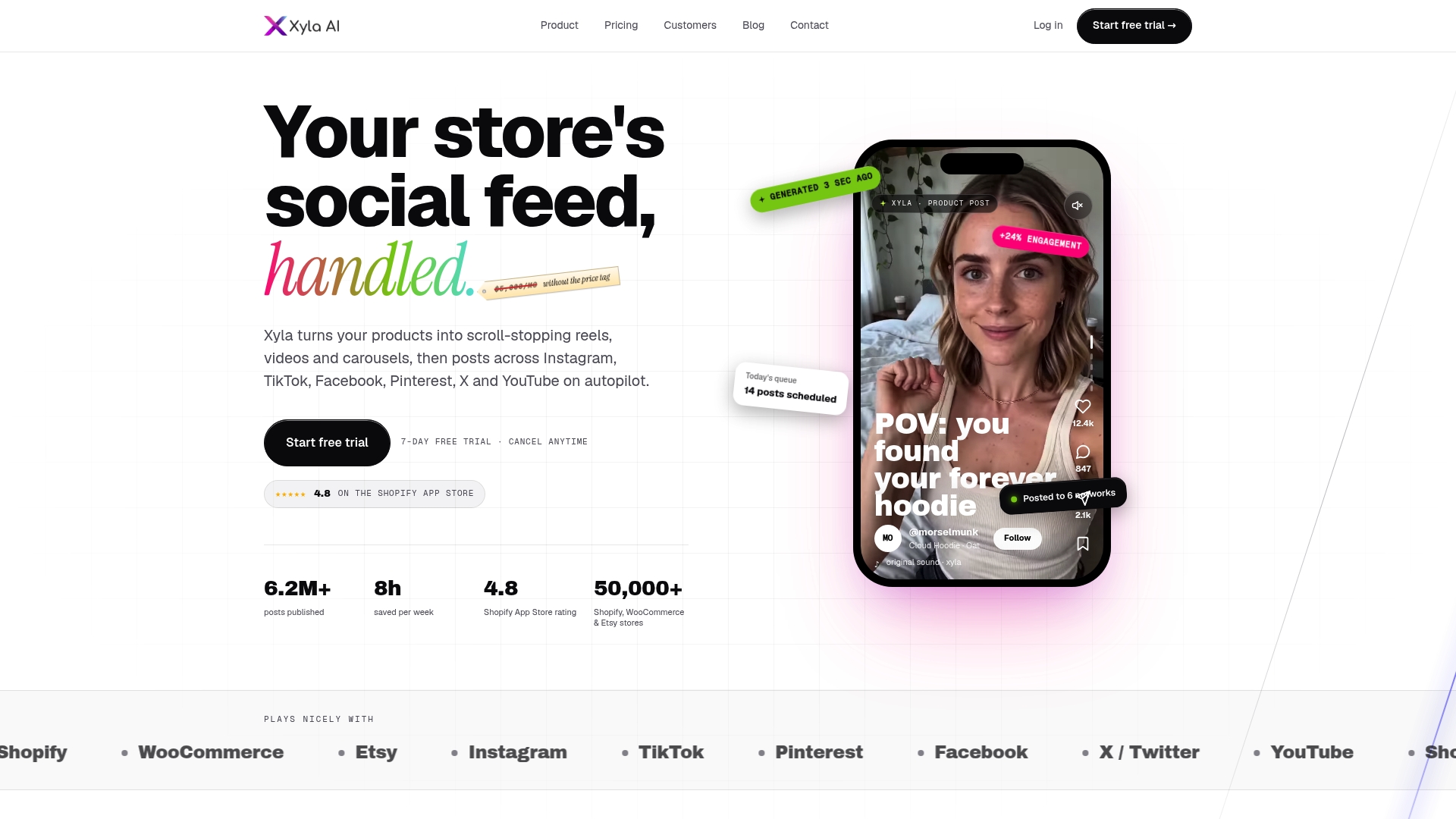
If you run a Shopify, WooCommerce or Etsy store, Xyla turns your product listings into reels, videos, carousels and short posts, customizes them for each network including X, and schedules and publishes them for you. It is designed to save store owners around eight hours a week.
Plans start from $29 per month on the pricing page, with Pro at $39 per month and Enterprise at $60 per month. Annual billing starts from $209 per year. Shopify sellers can see the plans on the Shopify page, and Etsy sellers on the Etsy page. Our guide to auto posting product updates walks through the five steps from a new listing to a scheduled post.
Where X fits in a wider content system
X works best as one channel in a system, not a separate chore. The same product story can become a short post on X, a reel on Instagram and a pin on Pinterest, each written for its own audience. Teams that treat the work as content marketing automation get consistency without adding headcount, because one source of truth feeds every channel.
For stores, that source is the catalog. When a new product goes live or a seasonal collection launches, the posts follow from it. Our overview of turning product listings into social posts shows how that looks in practice, and the ecommerce social media tips cover what to do once the posts are going out.
FAQ
Is auto posting on X allowed?
Yes. Publishing your own posts on a schedule is a normal use of X. What the automation rules prohibit is abusive automation, such as spam and attempts to get around limits. You remain responsible for apps connected to your account.
Can I schedule posts on X for free?
X’s help center documents scheduling from the compose box on the web version of x.com, without a separate scheduling tool. Availability can change by account type and device, so check X’s help center for what your account offers today.
Can AI write my X posts?
Yes, AI can draft several versions of a post from a product title, description and photos. Review the facts, tone, link and image before they publish. A person should own every post that goes out under the brand.
How often should a store post on X?
Start with a rhythm you can keep, such as one post per weekday, and vary the posting times for a few weeks. Then lean toward the slots that earn the most impressions and clicks. Leave room for live replies and customer questions.


