

How to Schedule TikTok Videos: Native Tools vs. Third-Party Apps
Yes, you can schedule TikTok videos. Use TikTok’s own desktop Video Scheduler to auto-publish anywhere from 15 minutes to 10 days ahead, and it requires a Creator or Business account. Want to plan a month of posts, work from your phone, or edit a post after you’ve scheduled it? That’s where third-party scheduling tools take over.
- Native scheduler: Best for quick, short-term scheduling directly on tiktok.com.
- Third-party tools: Best for mobile workflows, long-range calendars, team approvals, and edits after the fact.
- For e-commerce brands: A tool like Xyla AI handles the whole loop, turning product listings into video content and scheduling it automatically, so you’re not manually uploading every post.
Key Takeaways
Scheduling TikTok content reliably means matching the right tool to your timeline, since native scheduling covers short-term posting while third-party tools handle scale, edits, and mobile work.
Point Details Use native for short windows TikTok’s desktop scheduler covers 15 minutes to 10 days ahead for Creator or Business accounts. Third-party tools fill the gaps Mobile posting, in-place edits, and long-range calendars all require a third-party workflow. Time zone errors cause missed posts The native scheduler defaults to your device clock, so confirm it before every scheduled post. Test timing against your own data Weekend mornings and evening windows perform well broadly, but your analytics should guide the final call. Xyla AI automates the full loop It generates video from product listings and schedules posts at optimized times, saving store owners hours weekly.Table of Contents
- How to Schedule TikTok Videos Using the Desktop Scheduler
- Scheduling From Mobile: What Actually Changes
- When’s the Best Time to Post on TikTok?
- Building a Weekly Batch Scheduling Routine
- Common Scheduling Problems and How to Fix Them
- Why Consistent Scheduling Matters More Than Any Single Post
- Xyla AI Turns Your Product Listings Into a Scheduled TikTok Calendar
- Sources
How to Schedule TikTok Videos Using the Desktop Scheduler
The desktop scheduler lives inside TikTok Studio, and it’s the fastest way to lock in a post without touching a third-party app. Here’s the exact sequence:
- Confirm your account is set to Creator or Business (personal accounts can’t schedule). This has to be done on desktop, since TikTok’s mobile app doesn’t support native scheduling.
- Log in at tiktok.com and click Upload.
- Add your video, then fill in the caption, hashtags, cover image, and privacy settings exactly as you want them published.
- Toggle Schedule instead of posting immediately.
- Pick your date and time. This defaults to your device’s local time zone, not the platform’s or your audience’s.
- Hit Confirm, then check the Drafts or Scheduled tab to verify the post is queued for the right slot.
The window you’re working inside runs 15 minutes to 10 days out from the moment you schedule it. Anything further out needs a different tool.
Pro Tip: Before you confirm, screenshot your caption and cover image. If you need to fix a typo later, you’ll likely have to delete the post and rebuild it from scratch, so having your original text saved speeds up the redo.
Scheduling From Mobile: What Actually Changes
TikTok’s mobile app simply doesn’t have a native scheduling feature, which surprises a lot of creators who assume desktop and mobile work the same way. That’s confirmed by Hootsuite’s own testing: scheduling from your phone requires either a third-party app or a mobile-publisher workflow.
Three flows you’ll run into:
- Auto-publish: the tool posts directly to TikTok at your scheduled time, no action needed from you.
- Mobile-publisher push: the tool sends the finished, formatted video to your phone, and you tap to post it yourself. This keeps the upload happening on-device, which some creators prefer for platform reliability.
- Notification publishing: you get a reminder alert at post time and manually publish through the TikTok app.
Before connecting any third-party scheduler, run this quick check: confirm the app has permission to post on your behalf, verify your account is Creator or Business (some tools require it), check that video dimensions and length match TikTok’s specs, and make sure captions and hashtags carry over without truncation.
Pro Tip: If you’re running approvals with a team, a mobile-publisher push flow is often safer than full auto-publish, since someone still eyeballs the final video before it goes live.
Reach for a third-party tool when you’re cross-posting to Instagram or Facebook at the same time, need edit access after scheduling, or want a calendar that stretches past 10 days.
When’s the Best Time to Post on TikTok?
Timing data from Later’s analysis of millions of posts points to a few recurring high-engagement windows: weekend mornings, mid-week mid-morning slots, and evening stretches between roughly 5 and 8 PM. None of that is a guarantee for your specific audience, but it’s a solid starting point while you gather your own data.
On cadence, most brands start with a few posts per week and scale up gradually. Creators chasing algorithmic reach often push to 1 to 4 posts a day, but that pace only makes sense once you have the content pipeline to support it without burning out.
- Post consistently for two to three weeks, then check your analytics for which days and hours actually outperform.
- Reserve fixed slots for evergreen content (product features, tutorials) and leave open slots for trend-reactive posts.
- If you’re cross-posting, don’t assume one universal time works everywhere. Testing platform-specific windows instead of one blanket schedule usually protects reach on each network.
Xyla AI’s best-time-to-post feature automates this analysis so you’re not manually cross-referencing analytics dashboards every week.
Building a Weekly Batch Scheduling Routine
Batching turns scheduling from a daily chore into a once-a-week task. The routine looks like this:
- Plan topics for the week: new products, restocks, behind-the-scenes, trending sounds.
- Batch-record everything in one sitting, since context-switching between setups wastes more time than the filming itself.
- Edit all clips together, applying consistent captions and cover styles.
- Schedule the whole batch in one sitting using your calendar slots.
- Monitor performance and adjust next week’s topics accordingly.
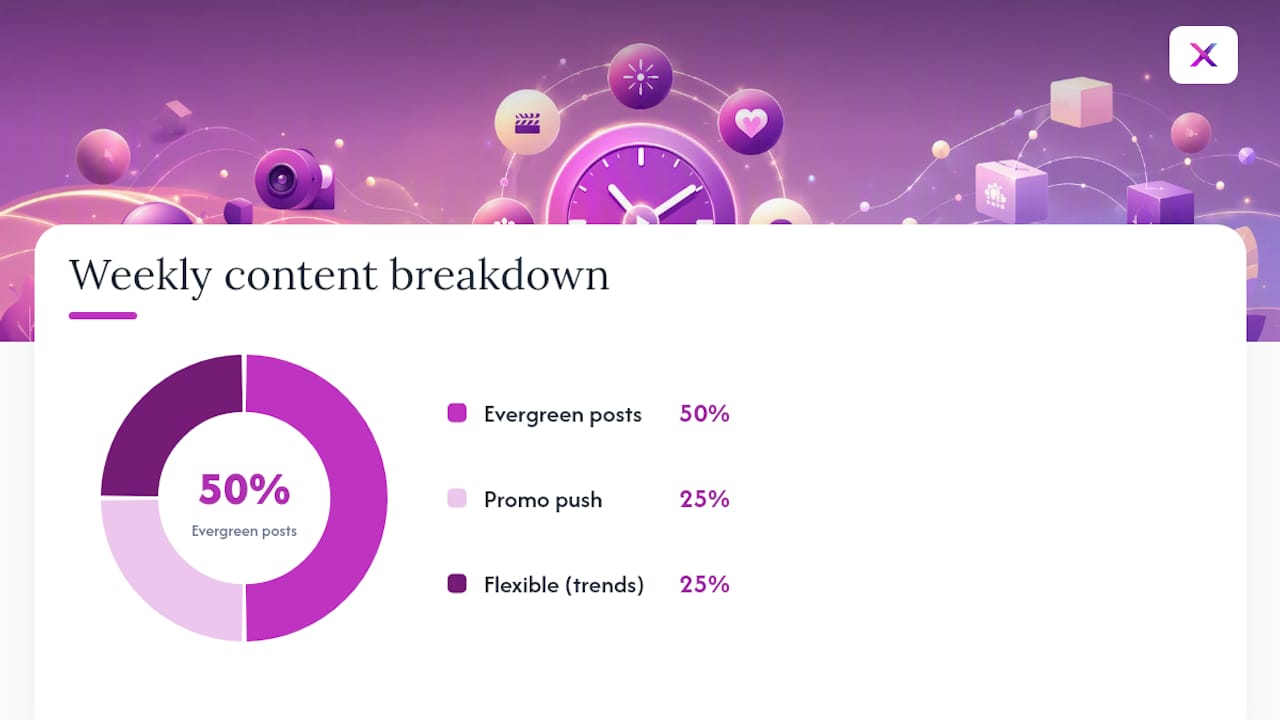
Map your week by content type: Monday and Thursday for evergreen product posts, one slot for a promo push, and one flexible slot held open for trends. Caption templates speed this up further, and AI-drafted captions or auto-optimized posting times cut batching time even more.
Pro Tip: Block two hours on a Sunday or Monday for the entire batch, from recording through scheduling. Splitting it across multiple days almost always takes longer overall.
Common Scheduling Problems and How to Fix Them
The single most common frustration: you can’t edit a scheduled post on TikTok’s native scheduler. Changing the caption or settings after confirming usually means deleting the post and re-uploading from scratch. Many third-party tools allow in-place edits, which is one of their biggest practical advantages.
The native scheduler defaults to your device’s local clock, not your audience’s time zone. If you’re scheduling for a global audience or working across time zones with a team, confirm the target time zone every single time before you hit confirm. A missed conversion here is one of the most common reasons posts go live at the wrong hour.
Quick troubleshooting checklist when a scheduled post fails to appear:
- Confirm your account is Creator or Business, not personal.
- Check that the connected app still has active posting permissions.
- Verify video format and length match current TikTok specs.
- Check whether you’ve hit a daily API rate limit if you’re using a third-party tool.
Scheduled posts show up in your Drafts or Scheduled tab on desktop, or inside your scheduling tool’s planner view. Always confirm the post actually published, since silent failures happen more often than you’d expect.
Why Consistent Scheduling Matters More Than Any Single Post
Consistency, not virality, is what actually builds discoverability on TikTok. A steady posting rhythm keeps your content in front of the algorithm and your audience without the burnout that comes from scrambling to post every single day.
For e-commerce brands specifically, an automated schedule lines up naturally with product launches and promotional pushes. You’re not racing to shoot content the morning of a sale. Scheduling and automation can save store owners real weekly hours that go straight back into product development and customer service instead of content firefighting.
— Toby
Xyla AI Turns Your Product Listings Into a Scheduled TikTok Calendar
You’ve now seen the two-track reality: native scheduling for quick, short-range posts, third-party tools when you need mobile flows, edits, or a real calendar. For a store owner, both tracks still leave you doing the hardest part yourself, actually making the video.
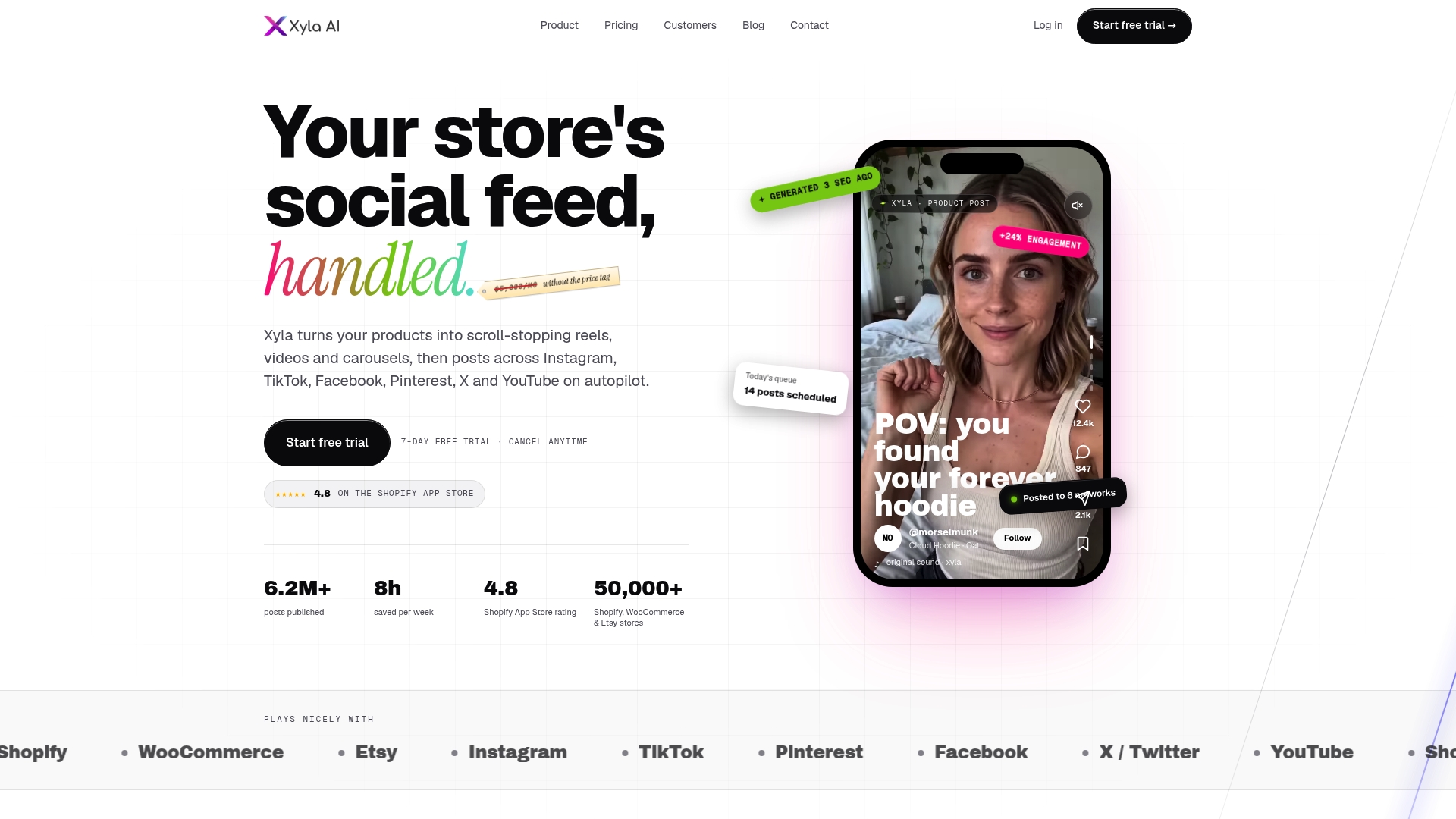
Xyla AI closes that gap by generating short-form video, reels, and carousels directly from your product listings, then scheduling and auto-publishing them across TikTok, Instagram, and Facebook at data-backed posting times. It solves the exact pain points this guide walked through: no manual re-uploads when you need to change a caption, no mobile-only bottleneck, and no 10-day ceiling on how far ahead you can plan. Store owners running Xyla AI report saving roughly eight hours a week that used to go into filming, editing, and manually scheduling posts.
If you’re running a Shopify, WooCommerce, or Etsy store and want your TikTok calendar built automatically from your product catalog, start automating your social media marketing with Xyla AI.
Sources
- Schedule TikTok Posts From Mobile and Desktop | Sprout Social
- How to schedule TikTok posts on mobile and desktop | Hootsuite
- Best time to post on social media in 2026 | Later
- How to schedule TikTok posts


