

Protect Your Feed: Autopost Shopify to Instagram with Catalog Filters
Yes, you can autopost Shopify products to Instagram. Connect your store to an automated publishing platform, let it read your catalog, and run a short pilot before scaling. Start with one collection, a low posting frequency, and a mix of feed posts and Reels, then measure clicks before you open the floodgates to your full inventory.
TL;DR:
- Autoposting Shopify products to Instagram relies on hourly catalog refreshes, which can cause delays in new product appearances or price updates.
- Key features to prioritize include collection filtering, cooldowns to prevent repetitive posts, real-time caption updates, and full Instagram shopping compatibility.
- Campaigns should be scheduled around the refresh delay, starting with one collection at a low posting frequency of one to three products weekly per channel.
- Video and Reels consumption often use more credits and cost more than static posts, so budget accordingly.
- Setting up a pilot with a verified Business or Creator account and targeting a small catalog helps track performance before scaling.
Table of Contents
- How Autopost Shopify to Instagram Integration Actually Works
- Which Features Actually Matter for Shopify Instagram Automation?
- What Do Shopify-to-Instagram Autopost Tools Cost?
- Best Practices and Pitfalls to Avoid
- How to Set Up and Pilot Your Shopify Instagram Automation
- Why a Store-Focused AI Manager Beats a Generic Scheduler
- A 30 to 60 Day Rollout Worth Following
- Try Xyla for Shopify Instagram Automation
- Sources
How Autopost Shopify to Instagram Integration Actually Works
The mechanics are simpler than most store owners expect. You authorize an app through OAuth, and it requests read-only access to your product catalog, pulling images, titles, prices, and inventory counts. Nothing writes back to your store. The tool just reads what’s there and turns it into a post.
Here’s what happens after that connection is live:
- The app checks your catalog on a set interval, often hourly, rather than watching for changes in real time.
- New products or price changes may not appear on Instagram the moment you save them in Shopify, since most platforms rely on scheduled refresh cycles instead of instant syncing.
- Output formats vary by platform, but the strongest options generate feed posts, carousels, and Reels from your product images, with Stories support on some tools.
That lag matters more than people think. If you launch a limited drop at 9 a.m. and the tool hasn’t refreshed since 8, your Instagram audience is looking at yesterday’s snapshot. Plan launches with that delay in mind rather than assuming instant parity between your store and your feed.
Which Features Actually Matter for Shopify Instagram Automation?
Ignore the feature lists that read like marketing copy. Focus on the handful of controls that actually protect your brand and your sales once posting runs on autopilot.
- Collection and tag filtering. You want the ability to import specific collections only, so a clearance rack or an internal test SKU never lands on your public feed.
- Cooldowns and rotation. A tool worth paying for offers cooldown or rotation controls that stop the same hoodie from showing up three times in one week.
- Live-fact captioning. AI-written captions should pull real price and stock data at posting time, not recycle a stale product description. Some platforms refresh product facts before every publishing run specifically to avoid selling out-of-stock or repriced items.
- Instagram Shopping compatibility. Confirm posts preserve product tagging and links so a viewer can go from photo to checkout without a detour.
Pro Tip: Ask any tool you’re evaluating one direct question: does the caption engine read current inventory, or does it cache facts from the day you connected? That single answer separates a real automation tool from a glorified scheduler.
Priority pinning is worth asking about too. Being able to push a specific product to the front of the queue during a sale beats waiting for the rotation to cycle back around on its own.
What Do Shopify-to-Instagram Autopost Tools Cost?
Pricing follows a familiar shape across the market. Most tools offer a free or trial tier with a handful of posts per month, then move into paid tiers priced by post volume, connected accounts, or AI credits for image and video generation. Marketplace listings on the Shopify App Store show this tiered structure repeated across nearly every serious contender.
Before you pick a plan, do the math on your actual needs:
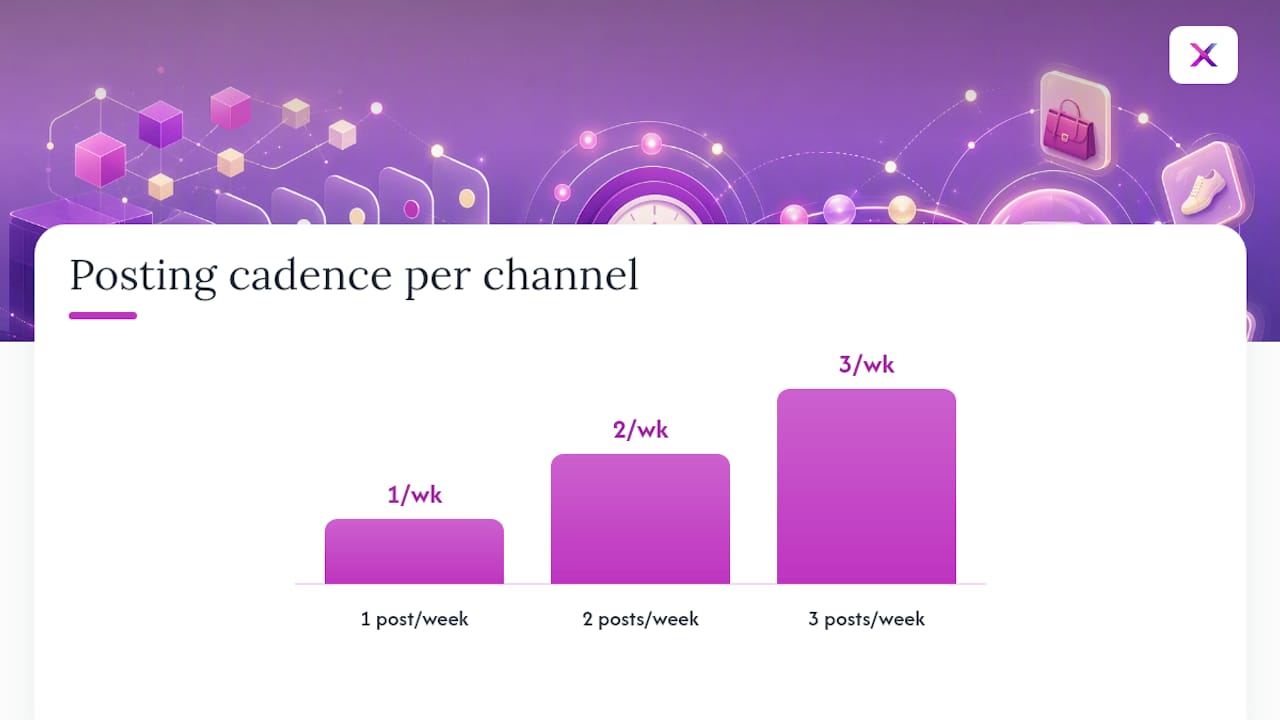
- Count your active catalog size, then multiply by your target cadence (most active stores post 1 to 3 product pieces per week per channel).
- Check whether Reels and video generation draw from a separate, more limited credit pool than static posts.
- Confirm how many social accounts and team seats are included, especially if you’re running Instagram, TikTok, and Facebook from one dashboard.
Underestimating video credits is the most common budget surprise. Reels tend to burn through usage-based limits faster than a static product photo ever will.
Best Practices and Pitfalls to Avoid
Automation publishes exactly what you feed it, mistakes included. Clean your product titles, images, and descriptions before you connect anything. A crooked product photo or a placeholder title like “test product 2” will go live on Instagram exactly as written.
A few rules keep the machine from working against you:
- Rotate posts by collection and lean on cooldowns so followers aren’t seeing the same three bestsellers on repeat.
- Preview AI-generated captions before they publish, at least during your first few weeks, to catch any claim that doesn’t match your actual product.
- Build promotions and launches around the sync delay rather than against it. If your tool refreshes hourly, schedule the campaign push after a refresh window, not five minutes before it.
- Treat cadence like a dial, not a switch. A reasonable starting point is 1 to 3 product posts per week per channel, adjusted up once engagement data backs it.
Overposting is the single fastest way to tank engagement on an automated feed. Followers unfollow accounts that feel like a catalog dump, not a brand they want to follow. Cooldown controls exist specifically to prevent that outcome, and skipping them is the most common rookie mistake.
How to Set Up and Pilot Your Shopify Instagram Automation
Getting from zero to a live pilot takes less time than most owners assume, provided you follow the sequence instead of skipping steps.
- Confirm your Instagram account type. You need an Instagram Business or Creator account linked to a Facebook Page, and if you want product tagging, your account also needs to clear Shopify’s commerce eligibility requirements for shopping features.
- Connect Shopify to your chosen tool via OAuth. This grants read-only catalog access, nothing more. A step-by-step walkthrough makes this part painless if it’s your first time.
- Pick one collection for your pilot. Not your whole catalog. One collection, ideally your bestsellers or a seasonal set.
- Preview a sample post before it goes live, and turn cooldowns on immediately, not after your first fatigue complaint.
- Run the pilot for a short period, such as a couple of weeks. Track link clicks and sales attributed to Instagram traffic, then adjust caption style, creative format, and cadence before rolling out to the rest of your catalog.
Why a Store-Focused AI Manager Beats a Generic Scheduler
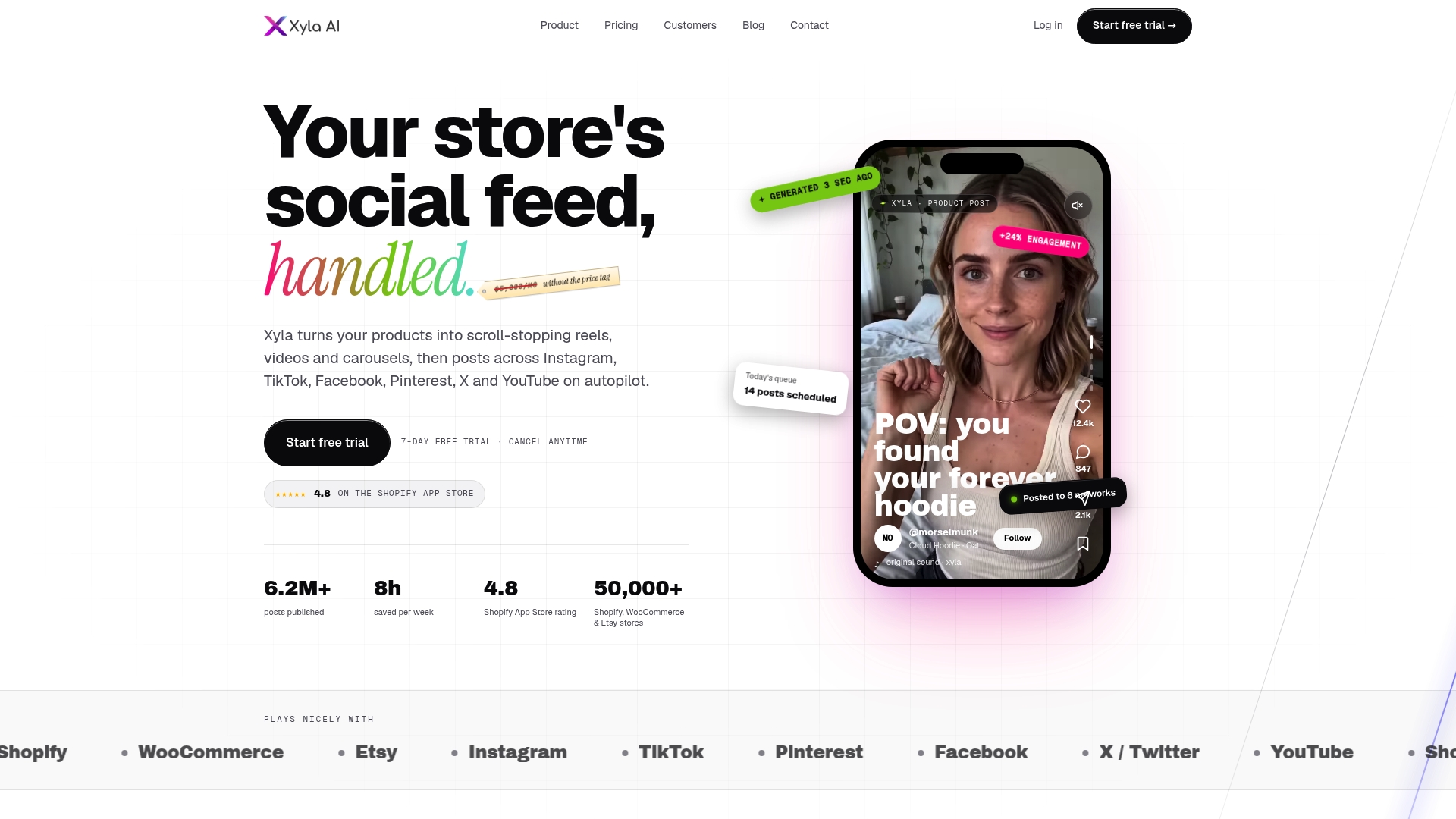
Generic schedulers post what you upload. An e-commerce-focused AI manager reads your catalog directly, so Xyla turns product listings into Reels, carousels, and feed posts without manual asset creation for every SKU. Store owners using this kind of automation report saving roughly eight hours a week they’d otherwise spend on manual posting. That math tends to favor stores with frequent catalog changes or a preference for video over static images.
A 30 to 60 Day Rollout Worth Following
Start narrow: pilot one collection for two weeks, weighted toward Reels and feed posts, and watch clicks and conversions before touching anything else. Once you see which format and caption style actually pull traffic, scale that pattern across more collections. The hours you get back from not manually posting are better spent building community and collecting real customer photos and video, the kind of content that eventually feeds your automation instead of the reverse.
— Toby
Try Xyla for Shopify Instagram Automation
Xyla reads your Shopify catalog directly and turns it into Reels, carousels, and feed posts, then publishes them on a schedule you control, without you touching a design tool or a caption box. Store owners who switch from manual posting typically gain additional time each week that can be used for customer service or sourcing your next product drop.
If you’ve been putting off automating your Instagram because setup sounds complicated, this step-by-step walkthrough shows exactly how the connection and first post work. Try it on one collection this week and see what your click data looks like after fourteen days.
Sources
- Shopify
- ExportYourStore — Shopify to Instagram integration
- Creatorflow — Instagram automation for ecommerce


